
The camera screen
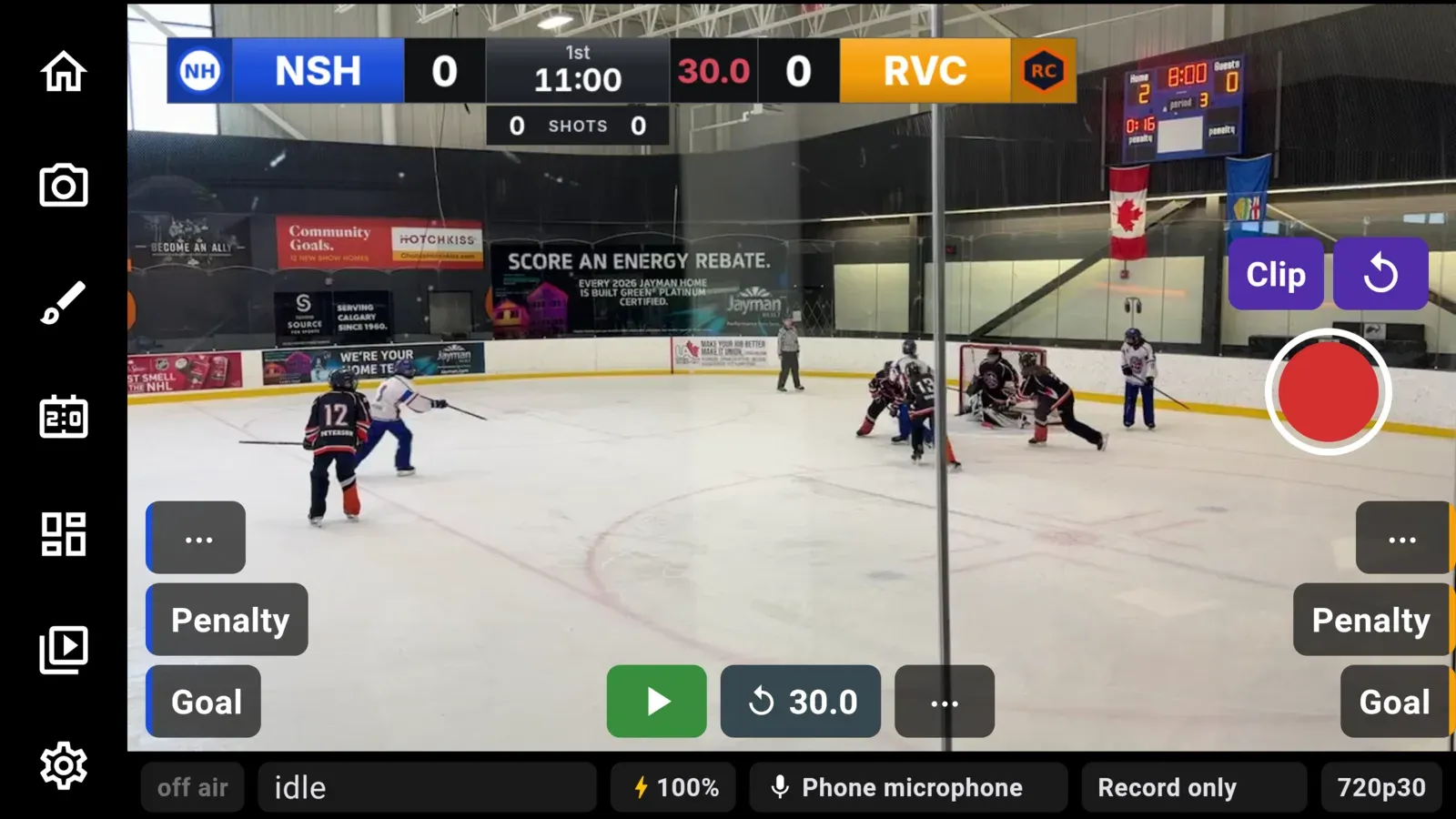
The camera screen is where you spend the game. Turn the phone sideways. The picture fills the middle of the screen, and nothing covers it except the game controls you need during play.
What is where
Section titled “What is where”The icon column runs down the left edge, beside the picture. Each icon opens its own panel, called a pullout, next to the column. From top to bottom:
| Icon | What it opens |
|---|---|
| Leave | Asks before closing the camera and going back to the home screen |
| Camera | The camera, exposure, focus, resolution, frame rate and sound |
| Look | The sponsor and the lower third (see Scenes and overlays) |
| Scoreboard | The scoreboard graphic and the period format (see The scoreboard) |
| Scene | Cut between the camera and a full-frame scene. Lit amber while a scene is up |
| Clips | The clips from this game (see Replay and clips) |
| Settings | Where the stream is going, the YouTube title and privacy, recording to the phone and muting the microphone |
Only one pullout is open at a time. To close it, tap its icon again, tap its chevron, tap the picture outside it, or press B on a controller.
Over the picture are the team stacks and the clock controls along the bottom edge. Home is on the left and away is on the right. The scoreboard page explains them.
On the right edge are Clip and replay, the record button, and the live pill:
- The record button is a white ring around a red disc. Tap it to start recording to the phone, and the disc turns into a red square. Tap it again to stop.
- The live pill reads
Go livewhen there is somewhere to stream to. While you are live it turns red and shows how long you have been on air. To stop, press and hold the pill until it fills. A quick tap only shows aHold to stopnote, so a stray thumb cannot end the stream. Going live has the details.
The strip along the bottom of the screen shows status only. From left to right: whether you are live and for how long, the bitrate, the battery (a bolt while charging, red under 20%), where the stream is going, and the frame rate.
Errors appear just above the strip, in red, without moving the picture.
Small badges on the picture tell you about states that are easy to miss: the name of a scene that is up, REPLAY while a replay plays, and AF-L while focus is locked.
Leaving the camera
Section titled “Leaving the camera”Tap Leave at the top of the column. If you are live or recording, CheerCam asks first. Stay keeps you on the camera screen. Stop and leave ends the stream and the recording and goes back to the home screen.
Choosing a camera
Section titled “Choosing a camera”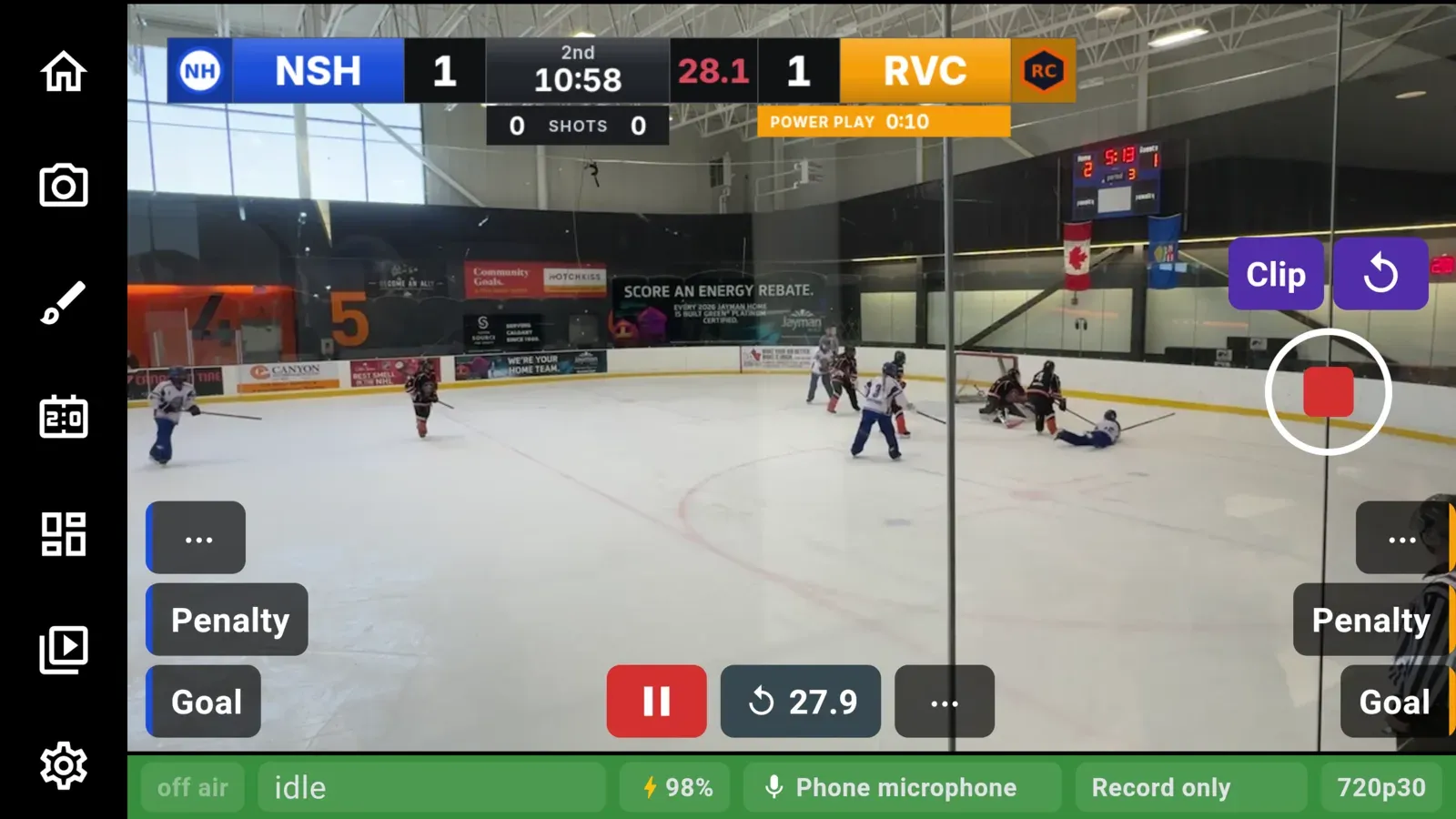
Open the Camera pullout and tap the camera’s name at the top. The menu lists Front, Back, any USB camera plugged into the phone, and any remote camera you have added. A remote camera can be picked only while it is sending. A green dot beside it means it is. See Remote cameras for adding one.
Zoom and lenses
Section titled “Zoom and lenses”Pinch the picture to zoom. On a phone with more than one back lens, zooming moves between them the way the phone’s own camera app does. Below 1x is the ultra-wide lens, and above it are the main lens and then any telephoto. On some Android phones the picture hitches for a moment as it changes lens, and that is expected, even while live.
On a controller, push the right stick up or down to zoom.
Focus and exposure
Section titled “Focus and exposure”Tap the picture to set where the camera focuses and measures light. Double tap to put zoom, exposure and the focus area back to normal.
The Focus row in the Camera pullout has two settings:
- Auto keeps focusing as the play moves. A tap moves the area it focuses on.
- Locked holds focus where it is. Use it when players skating close to the camera keep pulling focus off the game. Tap the area of play first, then pick Locked. A tap while locked refocuses at that spot and stays locked. A double tap does not unlock it. Only picking Auto does.
While focus is locked, an AF-L badge shows on the picture. CheerCam remembers your choice. When the camera opens with Locked chosen, it focuses first and then locks.
The EV slider makes the picture brighter or darker. Move it right for a dark rink or gym, and left if the ice or a bright window is washed out. The Focus row and the EV slider are hidden for cameras that cannot use them, such as remote cameras.
Resolution and frame rate
Section titled “Resolution and frame rate”Resolution lists only the sizes your phone can film and stream, so any choice works. It cannot be changed while you are live or recording.
Frame rate is 30 or 60 frames a second. 60 gives smoother motion and needs more upload speed. It cannot be changed while you are live.
Whatever frame rate you stream at, CheerCam films the replay buffer at 60 frames a second when the lens allows it. This makes slow-motion replays smooth. It happens on its own and there is nothing to set.
The Camera pullout also chooses what the stream hears. Tap the sound source to pick one of the phone’s microphones, any microphone connected to it, or a remote camera’s audio. A meter under it shows the level. For the phone’s own inputs, Gain makes it louder or quieter. A remote camera’s audio comes through at the level it is sent. You can change all of this while live.
To silence the stream for a moment, open the Settings pullout and turn on Mute microphone. It mutes the stream, the recording and the replay clips, whatever source is picked. Each time you open the camera, it starts unmuted.
Using a controller
Section titled “Using a controller”A Bluetooth game controller can run most of this screen without touching the phone. See Gamepad controls.