
Stingers
A stinger is a short full-frame clip with sound, made from your teams’ logos. CheerCam makes two kinds:
- A team stinger shows one team’s logo, in about four and a half seconds. It plays before a replay.
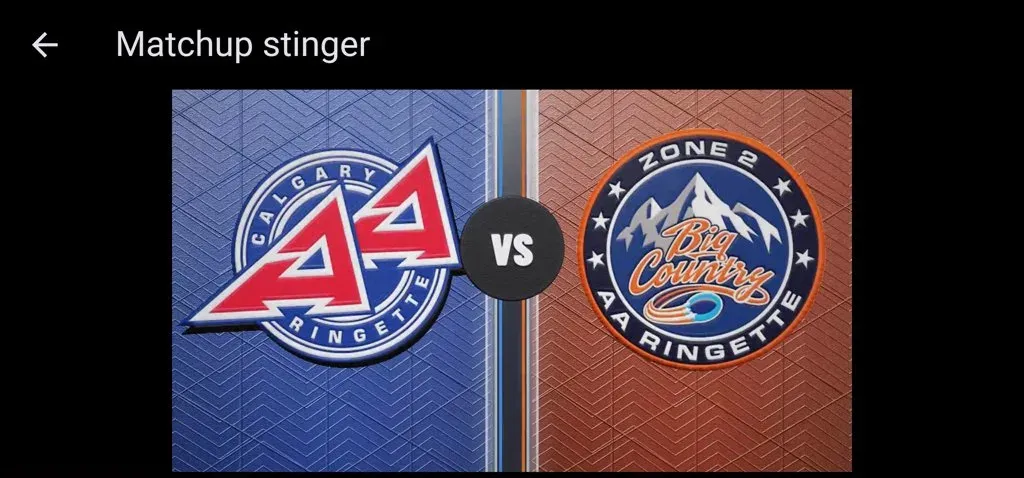
- A matchup stinger shows both teams’ logos with a VS between them, in about five seconds. It opens the stream.
The stinger covers the whole picture, scoreboard included, and its sound goes into the stream and the recording.
Create a team stinger
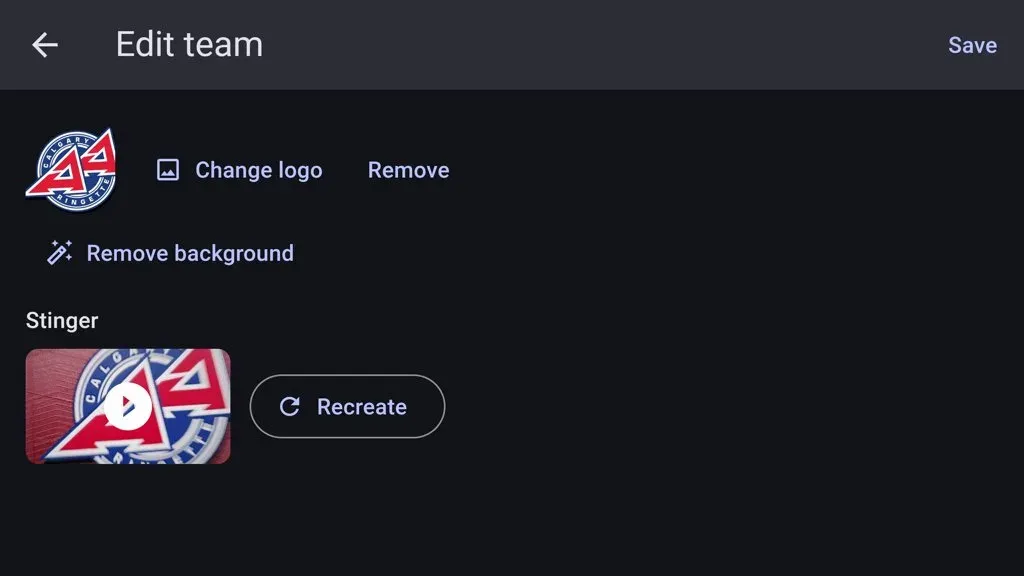
Section titled “Create a team stinger”- Open the team on the Teams tab. It needs a logo. The Stinger section shows under the logo once it has one.
- Tap Create stinger.
Create a matchup stinger
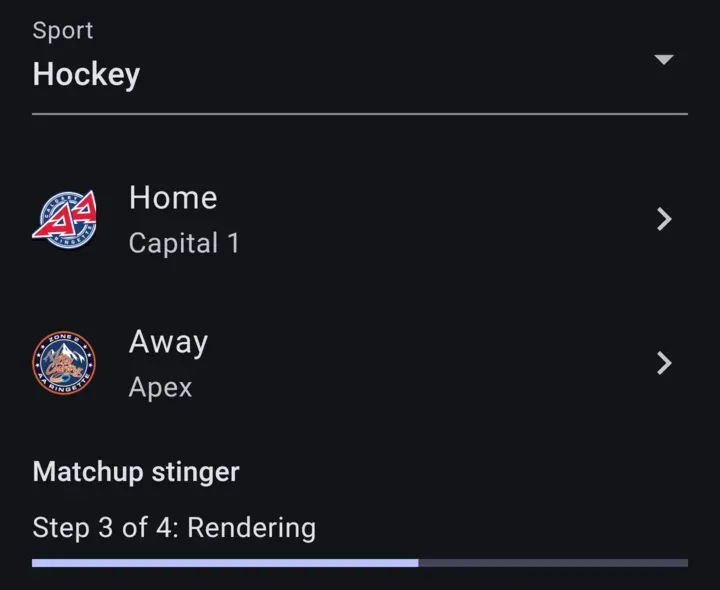
Section titled “Create a matchup stinger”On the New game page, or in the schedule editor on the Schedule tab, pick the home and away teams, then tap Create matchup stinger under them.
- Both sides must be saved teams. With either side on No team, there is no button.
- Both teams need a logo. Until they have one, the button is greyed and reads Both teams need a logo.
- The same tap also makes either team’s own stinger if it does not have one yet.
While it is made
Section titled “While it is made”A bar under the button shows four steps:
- Preparing logo: a logo that still has its background is cut out first, the same way Remove background does in the team editor. The cut-out becomes the team’s logo, and a note with Undo shows for a few seconds if you would rather keep the old one.
- Uploading: the logos are sent to CheerCam’s server, which draws the clip.
- Rendering: usually a few seconds. When the server has been idle, it can take a minute or more.
- Downloading: the clip comes back to the phone.
Once it is done, the section shows a still from the clip. Tap it to watch the clip with its sound. Recreate makes it again. When CheerCam has a newer stinger design, the button reads New stinger design available instead.
Where stingers are kept
Section titled “Where stingers are kept”Stingers are saved on this phone only. They are not shared with your other phones the way teams are, so make them on the phone that films.
A stinger belongs to the logos it was made from. Any later game with the same teams already has it, with nothing to make again. A matchup with home and away swapped is a different clip and is made once on its own. When a team’s logo changes, or the team is deleted, its stingers are removed and need to be made again.
Limits
Section titled “Limits”- Creating a stinger needs the free trial’s hour or a subscription, the same as Go live and Record. Stingers you already made keep playing after the trial ends.
- Each phone can make 30 stingers a day. The message names the time you can make more.
- It needs an internet connection. If the connection fails, the stinger you had stays as it was.
Pick the stingers for a game
Section titled “Pick the stingers for a game”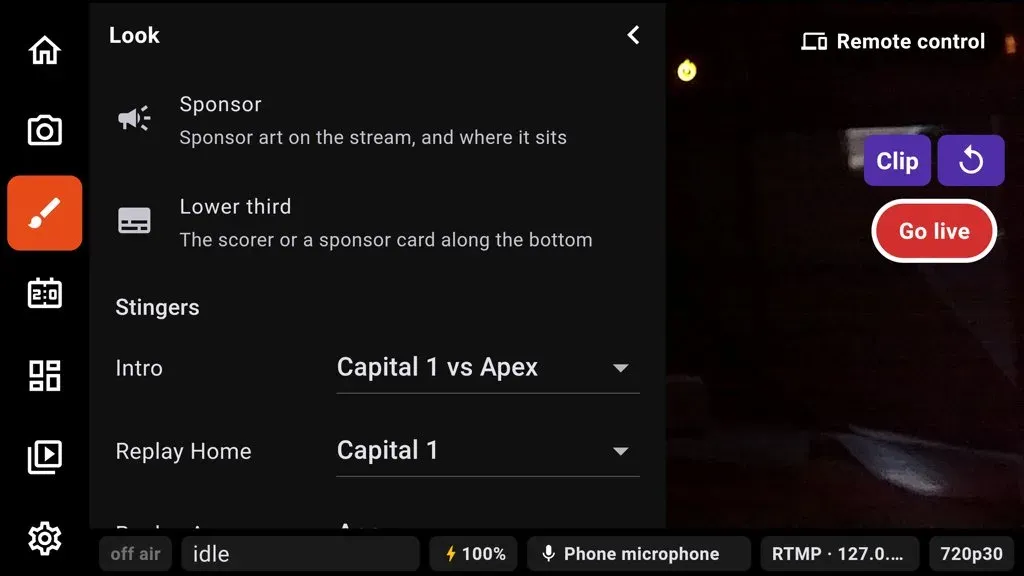
On the camera screen, tap Look (the brush) in the icon column. The Stingers section under Lower third has three choices:
| Slot | What it lists | When it plays |
|---|---|---|
| Intro | This game’s matchup stinger | When the game starts on air |
| Replay Home | Both teams’ stingers | Before a full-frame replay of a home team moment |
| Replay Away | Both teams’ stingers | Before a full-frame replay of an away team moment |
Each also has None, which plays nothing there.
You rarely need to pick. A slot you have not picked fills itself: Intro with the game’s matchup and each replay slot with that team’s stinger, as soon as the clip exists, including one you just made. A slot you picked yourself is never changed for you.
Your picks are saved with the game, and a continued game keeps them. A slot whose clip is no longer on the phone shows Missing and plays nothing, and the stream or the replay goes ahead without it.
When they play
Section titled “When they play”- YouTube or RTMP: once after each Go live, as soon as the stream is live. It does not play again after a dropped connection comes back, or when you start recording later.
- Record only: at the start of the game’s first recording. Recordings started after that begin straight on the camera.
Before a replay
Section titled “Before a replay”The replay stinger plays before a full-frame replay played from the Clips pullout. The replay starts behind it, so viewers see the stinger and then the replay. When the replay ends, the stream cuts straight back to the camera.
- A queue of clips gets one stinger, before its first clip.
- The side comes from the goal, shot or penalty the clip was tagged with. Any other clip uses Replay Home.
- Corner replays get no stinger. Neither does the Replay button or a replay played from the gamepad.
See Replay and clips for playing clips.
What viewers see
Section titled “What viewers see”While a stinger plays, the scoreboard and any lower third fade off, and they come back when it ends, with the score as it stands.