
Scenes and overlays
Everything on this page goes into the stream itself, not only onto your screen. Viewers see exactly what the preview shows.
Scenes
Section titled “Scenes”A scene is a panel laid over the live camera. The camera stays visible around it and faintly through it. While a scene is up, the scoreboard and any lower third are off the stream. They come back when you take the scene down, with the score as it stands, so a goal you entered behind the scene is already on the board.
To put one up, tap Scene in the icon column on the camera screen and pick from the list:
| Scene | What viewers see |
|---|---|
| Camera | No scene. The normal picture with the scoreboard. |
| Rosters | Both line-ups side by side, home on the left, in jersey order. |
| Intermission | A summary of the period that just ended (below). |
| Final | The final score. |
| No graphics | The camera alone, with no scoreboard. |
The Scene icon turns amber while any scene is up, including No graphics, and the preview shows the scene’s name as a badge. Scenes fade in and out. Picking another scene while one is up cross-fades between them. Pick Camera to take the scene down.
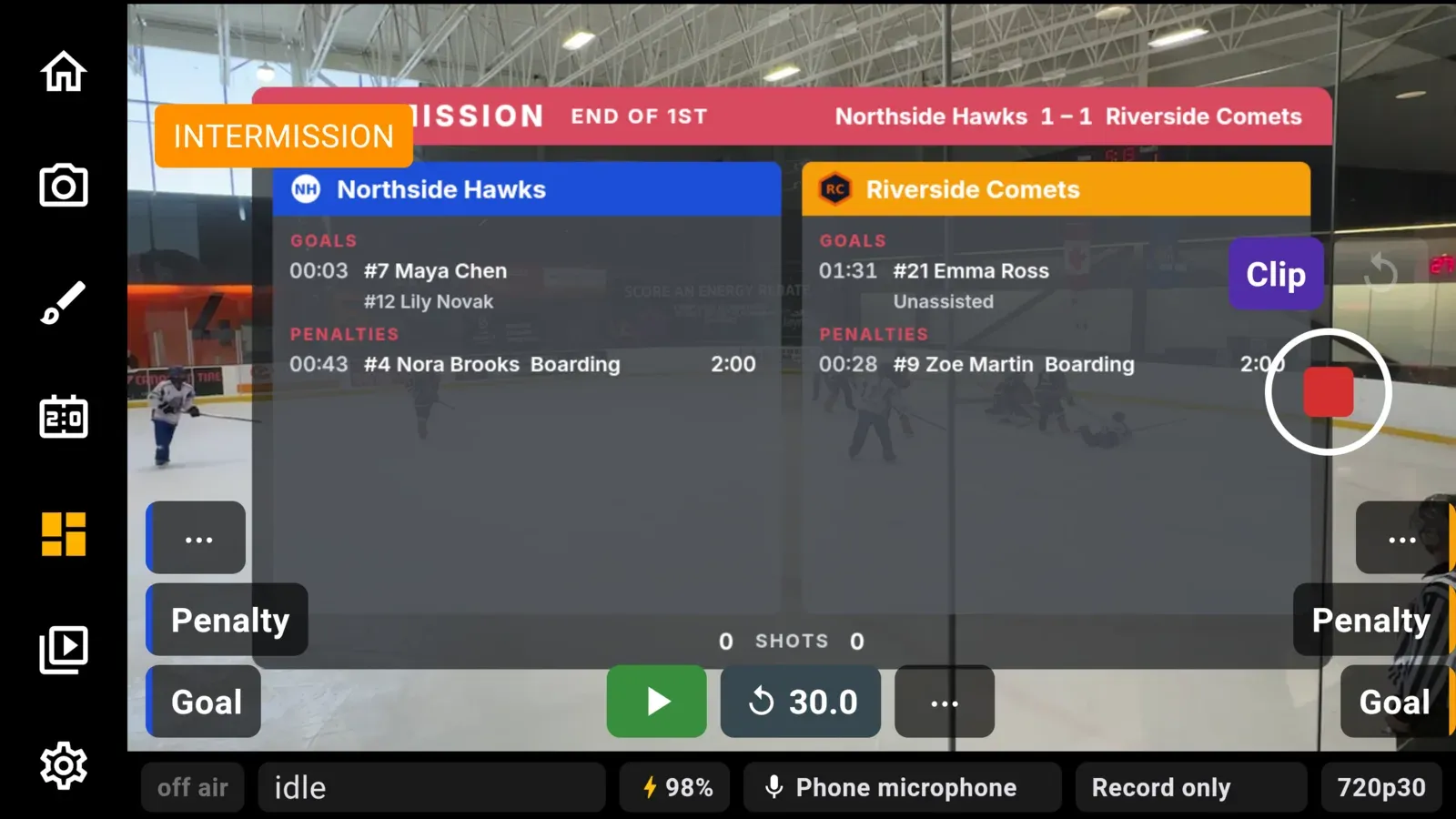
A few things change while a scene is up:
- Replay is off. The replay button is greyed out, and a replay that was playing stops. Clip still saves the moment for later.
- Goal and penalty strips that fire under a scene are dropped, not saved for later.
- Sponsor art stays on.
Rosters come from the saved teams picked at game setup. A team typed in by name has no roster, and its column says so. See Teams and rosters.
The intermission summary
Section titled “The intermission summary”The Intermission scene lists what happened in the most recently completed period, in two columns with home on the left:
- Goals, each on two lines: the time into the period, the scorer and any tags, then the assists. Tags are
PPG(power-play goal),SHG(short-handed goal) andEN(empty-net goal). - Penalties, each on one line: the time, the player, the infraction and its length. A penalty cut short by a goal is marked with the time it ended.
- The game score, as a small line in the header beside
END OFand the period. - Shots on goal, or team fouls, along the bottom.
In basketball each column shows the team’s points for the quarter, its top scorer for the quarter (when the shooter was named) and its fouls.
Times count up from the start of the period, as on a scoresheet. A period with nothing in a section reads None. When a column runs out of room, the oldest entries fold into a +N more line and the latest stay visible. Shown before any period has ended, every section reads None.
The summary is built from what you entered during play, so a goal with no scorer picked shows as the number only, or Unassigned. See Scoreboard for naming scorers and penalties as you go.
Lower thirds
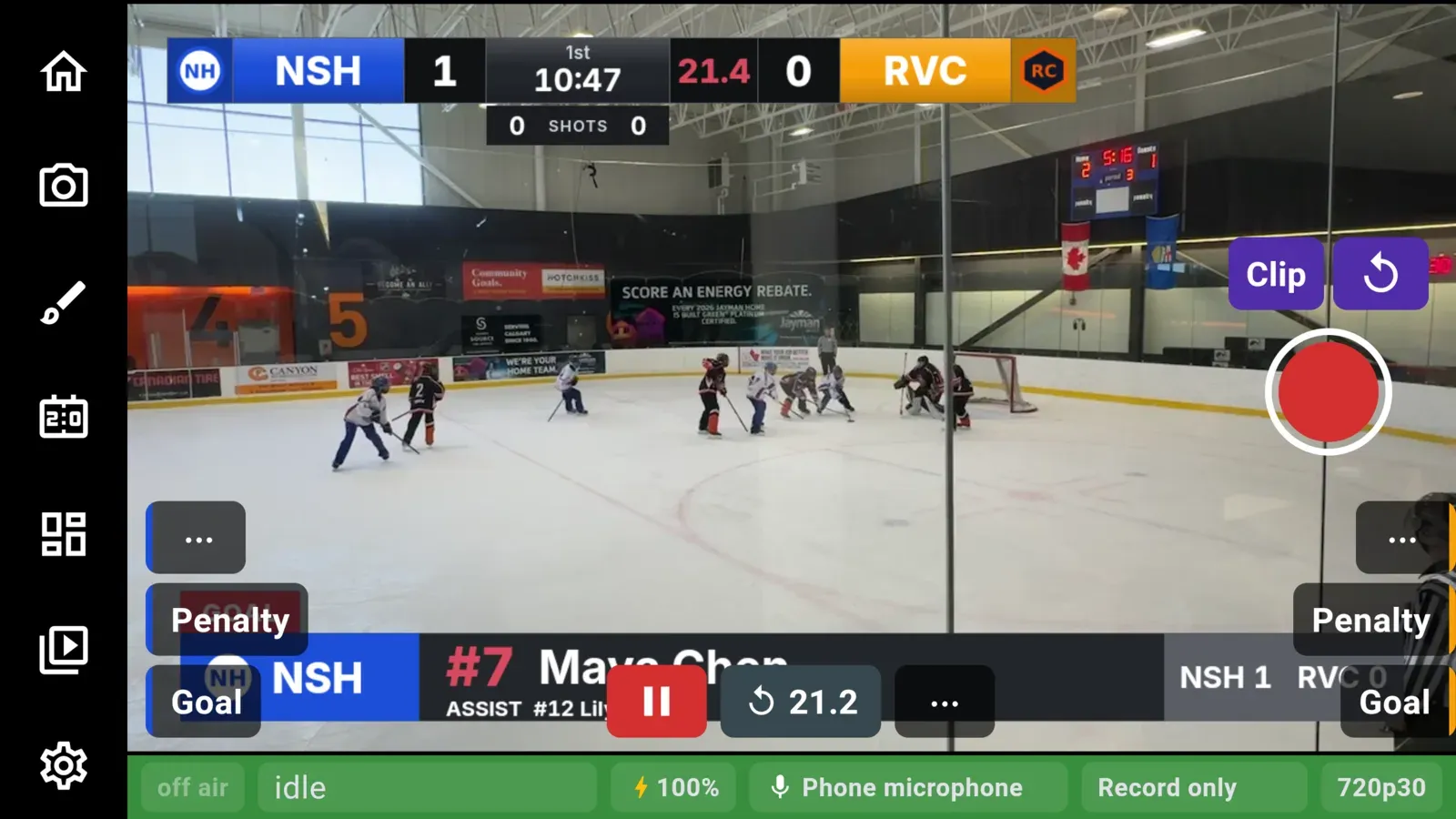
Section titled “Lower thirds”A lower third is a strip along the bottom of the picture, separate from the scoreboard. Open it from Look in the icon column, then Lower third.
The sheet shows what is on the stream now and has three kinds of strip:
- Goal. A strip naming the side and the score. Tap a player under a team to put up a goal strip naming that player instead. The players come from the team’s saved roster, in jersey order.
- Penalty. Put up automatically when a penalty is entered (see below).
- Sponsor card. Any picture from your sponsor list, shown as a strip.
Tap Take off to remove whatever is up. Choosing a strip closes the sheet.
After a goal or penalty is on by default and remembered between games. With it on, the side’s strip goes up by itself for eight seconds after a goal or a penalty is entered. Tap a player in the sheet afterwards to name the scorer on it.
Goal strips need a game running and, for player names, saved teams. Basketball has no goal strip, since a basket is not entered as a goal.
Sponsors
Section titled “Sponsors”Sponsor art is a picture or a short video that sits in a corner of the stream for the whole game. It stays on under scenes and replays.
Open Look in the icon column, then Sponsor. The same screen is also on the game setup page.
- Tap Add picture or Add video loop and choose from your photo library. The art is copied into CheerCam, so you can delete the original.
- Tap an item in the list to add it to the rotation. Tap it again to take it out. No sponsor clears the rotation.
- Pick a Corner (Top left, Top right, Bottom left, Bottom right) and a Size (Small, Medium, Large).
With one item chosen it simply stays up, which also works as a watermark or club logo. With two or more, they take turns in the order you added them, each for 10 s, 20 s, 30 s or 60 s. Any change to the list starts the rotation again from the first item.
Pictures keep their shape. Video loops play silently, round and round, at their own speed, and take their turn in the rotation like a picture. A clip filmed upright on a phone plays upright.
Your sponsor choice is remembered between games. Sponsor art travels with a team export, so a second phone can be set up the same way. See Teams and rosters.