
Scoreboard graphics
The scoreboard graphic is the bar in the top corner of the stream that shows the teams, the score, the clock and the period. CheerCam draws it into the video itself, so viewers on YouTube or anywhere else see it exactly as your preview shows it.
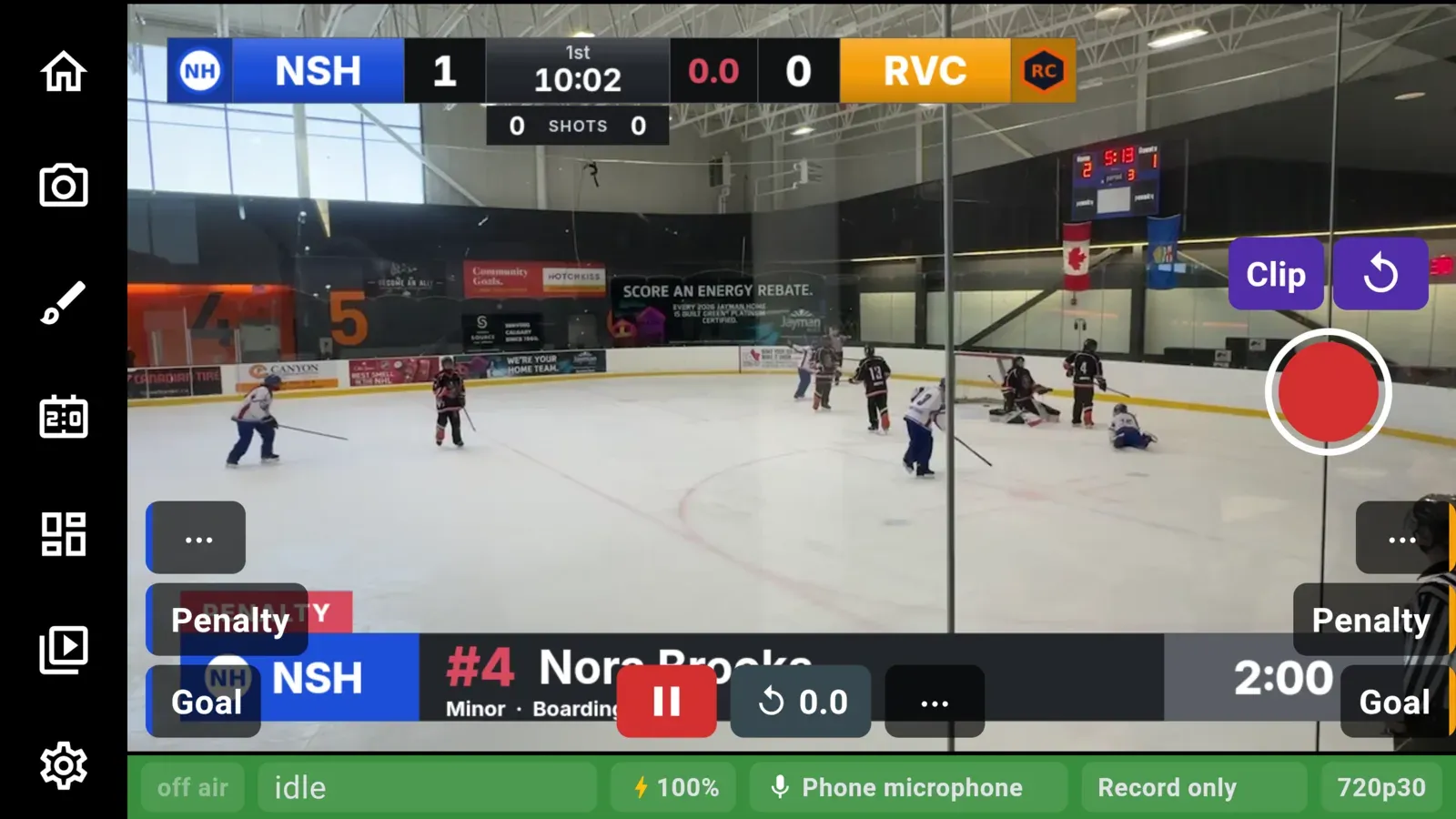
Choosing a graphic
Section titled “Choosing a graphic”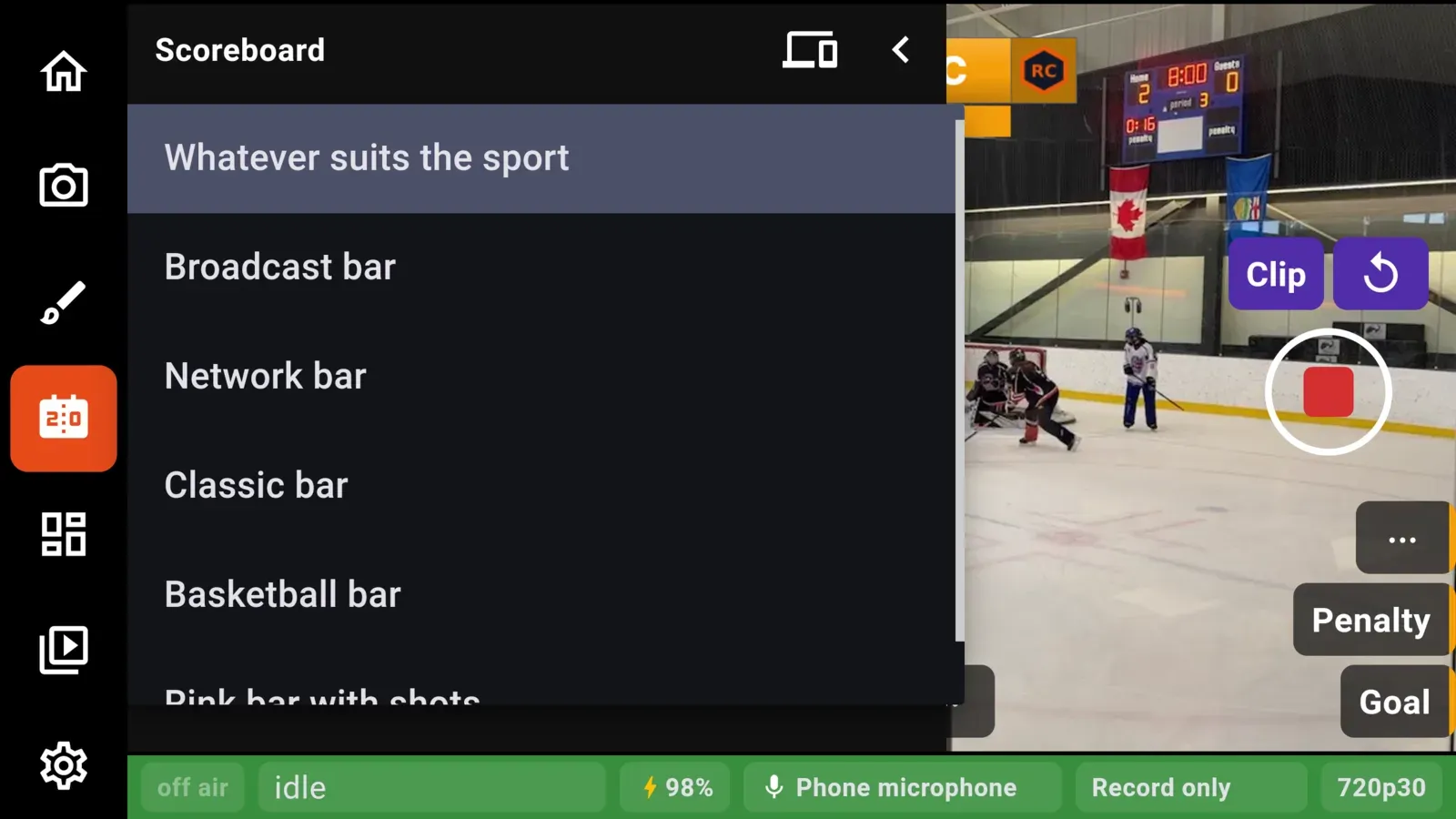
You can choose the graphic in two places:
- Game setup, under Scoreboard graphic, before the game starts.
- The Scoreboard pullout on the camera screen, at any time, including while you are live.
Whatever suits the sport is the default. It picks a graphic made for the sport you are playing. CheerCam remembers your choice for each sport, so a basketball game does not come up on the hockey graphic you picked last week.
The graphics
Section titled “The graphics”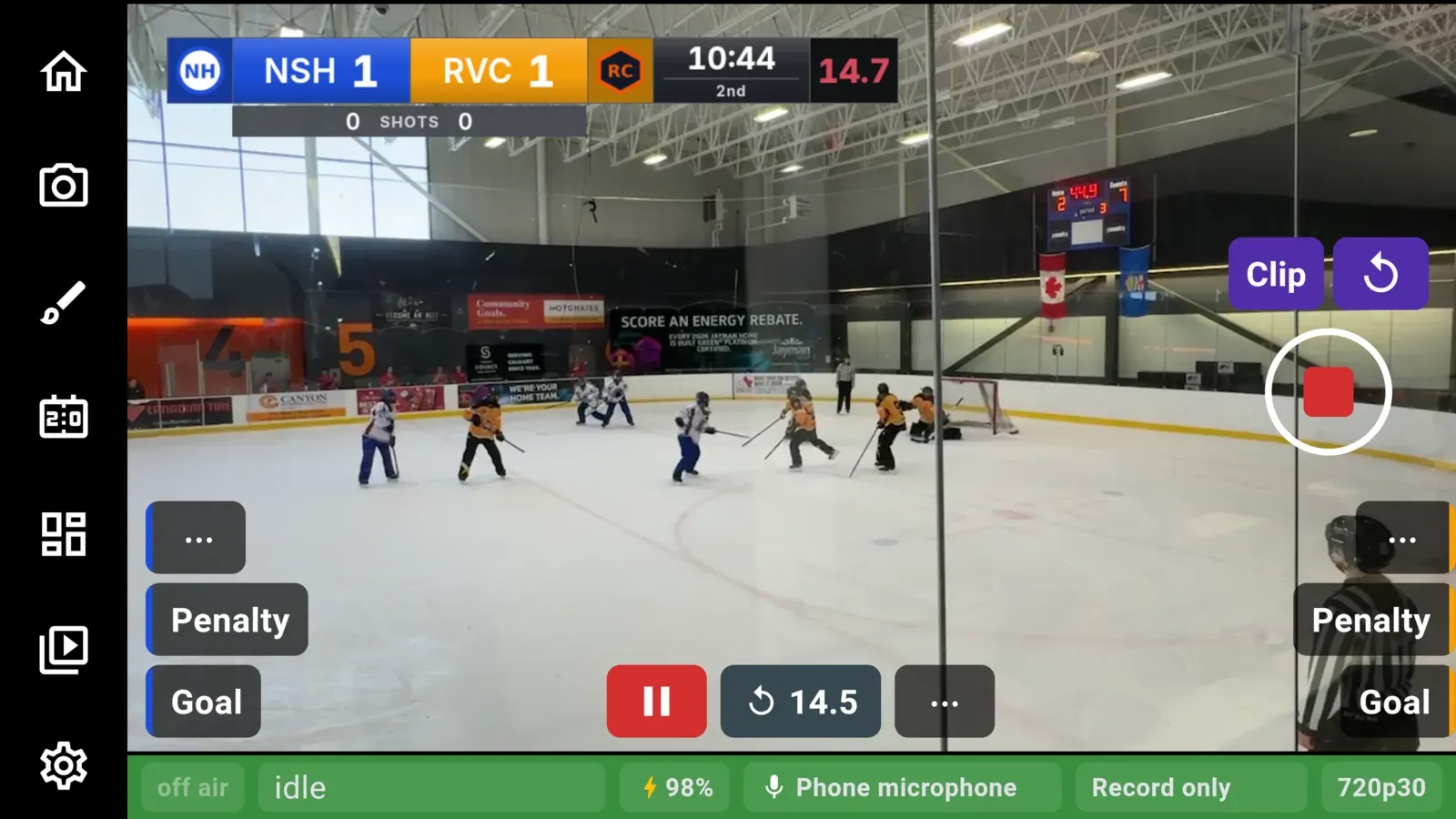
| Graphic | Made for | Shows |
|---|---|---|
| Broadcast bar | Hockey, ringette | Teams, logos, score, clock, period, shots, shot clock, power play, timeouts and empty net |
| Network bar | Hockey, ringette | A taller bar with the same facts and one strip for timeouts, empty net or power play |
| Rink bar with shots | Hockey | The score with shots on net |
| Basketball bar | Basketball | Teams, logos, score, quarter, clock, shot clock, team fouls and bonus, and timeouts left |
| Classic bar | Any sport | A simple angled bar with teams, score and clock |
The list shows every graphic, with the ones made for your sport first. You can use any graphic with any sport. If a graphic has a spot for something your sport does not track, such as a shot clock in hockey, that spot is left out.
Team colours and logos
Section titled “Team colours and logos”Each team’s colour and logo come from the team you set up on the Teams tab. A team with a logo shows it beside its score. A team without one shows its short name on its own colour. For a clean logo on the stream, use Remove background on the team’s logo, which cuts the crest out from its background. See Teams and rosters.
Scoreboard colours
Section titled “Scoreboard colours”The rest of the graphic uses five colours that you can change to match your club. On the home screen, open Settings and then Scoreboard colours:
| Colour | Used for |
|---|---|
| Accent | The colour panels |
| Slab | The dark strip behind the clock and period |
| Backing | The board behind everything |
| Bright lettering | Names, scores and the clock |
| Muted lettering | Period labels and legends |
Every graphic reads the same five colours, so changing graphics keeps your colours. Reset returns them to CheerCam’s own.
To make one item stand out, such as the shot clock in amber, tap Colour one control. Pick the control and then the colour it gets. Everything else keeps the main colours.
Your colours carry over to the next game.
Animations
Section titled “Animations”The Broadcast bar, Network bar and Basketball bar animate when something happens. A goal or basket gets a short animation, and in hockey and ringette so do a penalty starting and a penalty ending. They play in the stream as well as on your screen. There is nothing to turn on.
What else the graphic shows
Section titled “What else the graphic shows”Depending on the sport and the graphic, the scoreboard also shows:
TIMEOUTunder a team during its timeout.POWER PLAYwith the time left when a team is up a player, and the strength (such as5 on 3) when it is up two.EMPTY NETunder a team that has pulled its goalie (see The scoreboard).- A
REPLAYtag under the scoreboard while a replay plays (see Replay and clips).