
Home and Schedule
The app opens on the Home tab every time. The bottom bar holds Home, Schedule, Start, Teams and Settings.
Home: your games
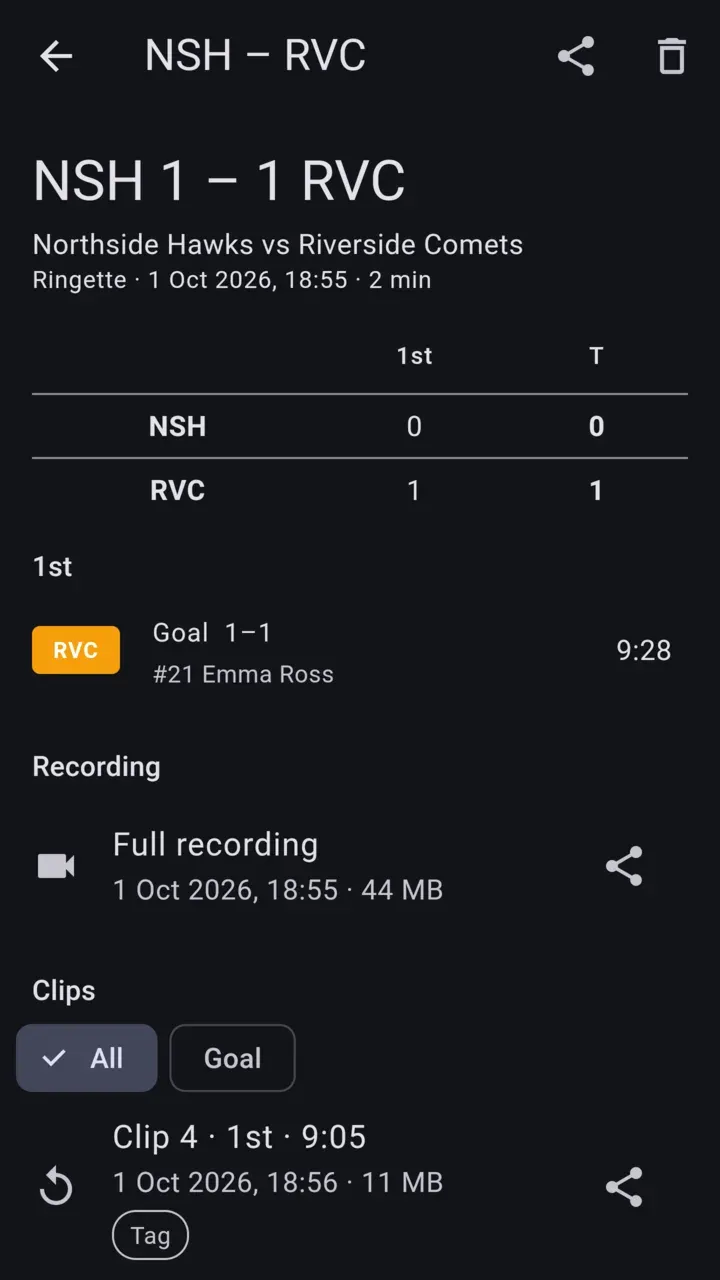
Section titled “Home: your games”Home lists every game you recorded or streamed, newest first. Each row shows the two teams, the final score, the sport and the date, with marks for a recording and the number of clips.
A game is saved the first time you record or go live in a camera session. Opening the camera just to look around does not create a game. The game ends when you leave the camera screen, and the score at that moment is the final score.
Tap a game to open its page:
- The score, the teams, the sport, the date and how long it ran.
- The game log: each goal (or basket) and penalty (or foul), period by period.
- The recordings and clips, which play in the app.
- Share, to send the recording and clips through the phone’s share sheet, one at a time or all together.
- Delete this game, which removes the game and its files after you confirm.
Schedule: plan broadcasts ahead
Section titled “Schedule: plan broadcasts ahead”The Schedule tab lists the upcoming broadcasts on your YouTube channel, soonest first. That includes ones made in YouTube itself. You need to be signed in to YouTube in Settings.
Scheduling a game ahead gives you a watch link to share with families before game day.
Schedule a game
Section titled “Schedule a game”- Open Schedule and tap +.
- Set the date and time, the sport, the home and away teams, and the privacy (public, unlisted or private).
- The title fills in as
Home vs Away - Date. Change it if you like. - Tap Save. The broadcast is created on YouTube right away.
A time in the past is refused.
Share, change or delete
Section titled “Share, change or delete”- Share the watch link on a row opens the share sheet with the YouTube link.
- Tap a row to change its title, time, privacy, sport or teams, then Save changes.
- Slide a row to the left to uncover delete, or use the editor’s menu. Deleting removes the broadcast from YouTube after you confirm.
Go live to a scheduled game
Section titled “Go live to a scheduled game”Open the scheduled game and tap Go live to this broadcast. The New game page opens with the sport, teams and broadcast already filled in. You can also pick the scheduled game on the New game page under the YouTube destination.
The broadcast thumbnail
Section titled “The broadcast thumbnail”CheerCam draws a thumbnail for each broadcast it creates: both team names across the top, the two logos in boxes framed in each team’s colour, a VS badge and the start date and time. A team with no logo shows its name in its box. A side with no team reads TBD.
The thumbnail is shown as a preview in the schedule editor, and on the New game page when you go live to a new broadcast. Tap either colour swatch to change that side’s colour for this game. The team’s own colour is not changed.
YouTube only accepts custom thumbnails on a verified channel. On an unverified channel the preview says so and links to YouTube’s verification page. Scheduling and going live still work.
If the thumbnail does not reach YouTube, the game is still saved. Save again to retry.