
Getting started
CheerCam turns a phone into a broadcast camera for amateur sports. It films the game, draws a live scoreboard into the picture, and streams it to YouTube or any RTMP server while it records a copy on the phone.
Install the app
Section titled “Install the app”CheerCam runs on Android phones and iPhones.
- App Store: coming soon.
- Google Play: coming soon.
Permissions
Section titled “Permissions”The app asks for these the first time it needs them:
| Permission | Why |
|---|---|
| Camera | to film the game |
| Microphone | to put the game’s sound on the stream and the recording |
| Local network (iPhone) | to connect to a second phone running the scoreboard, and to receive remote cameras on the same Wi-Fi |
| Photos | to pick team logos, player pictures and roster screenshots that you choose |
| Bluetooth, where the phone asks for it | to use a game controller |
If you decline one, you can turn it on later in the phone’s own settings.
Your first broadcast
Section titled “Your first broadcast”- Connect YouTube. Open Settings and tap Sign in next to YouTube. Pick the Google account and then the channel you stream to. To stream to another service instead, skip this and use RTMP in step 4. See Going live.
- Add your teams (optional). Open Teams, pick the sport and add the two teams with their logos and colours. You can skip this and play as Home and Away. See Teams and rosters.
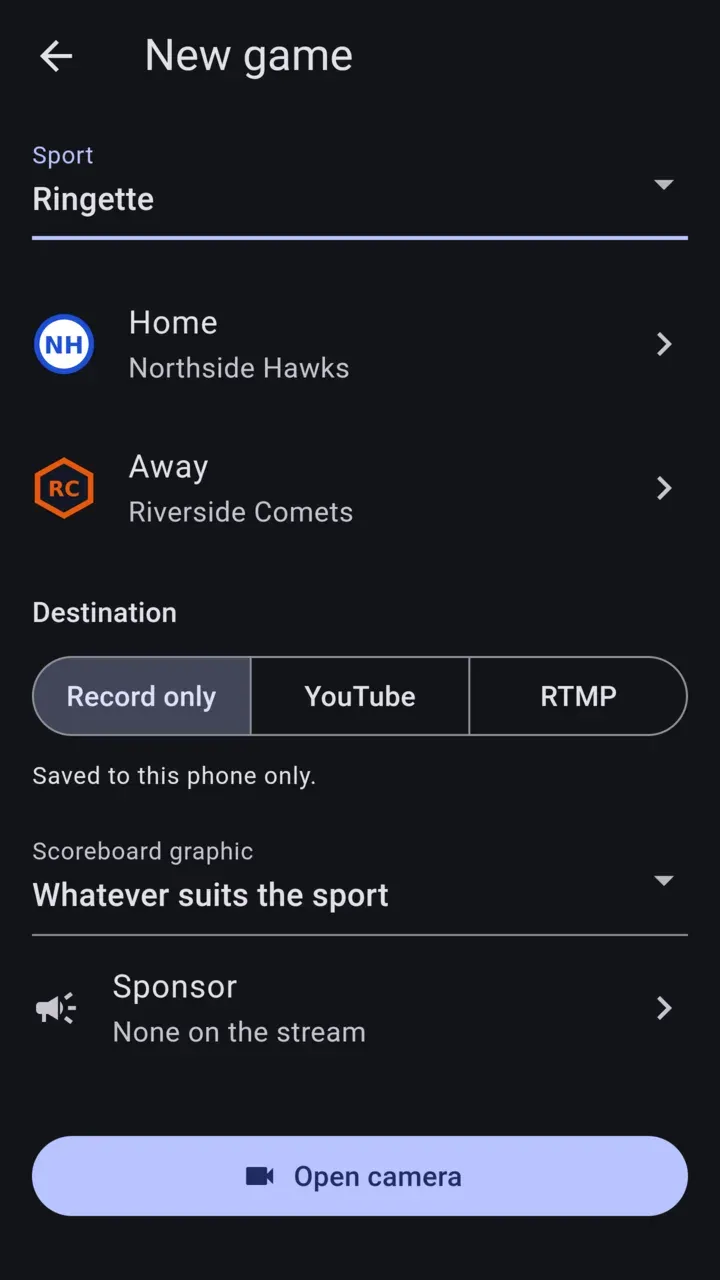
- Start a game. Tap the large Start button in the bottom bar. The New game page opens.
- Fill in the New game page. Pick the sport, the home and away teams, and a destination: Record only, YouTube or RTMP. Under YouTube, choose a new broadcast and its privacy, or a game you scheduled earlier. Choose the scoreboard graphic and any sponsor. Every field remembers what you used last time.
- Open the camera. Tap Open camera. Turn the phone sideways. The camera screen checks your connection and suggests a stream quality. Tap Use to accept it.
- Go live. Tap Go live. Run the scoreboard from the buttons over the picture or from a gamepad.
- Stop. Press and hold the LIVE pill until it fills. The stream ends and the game is saved on the Home tab with its score, recording and clips.
Where to go next
Section titled “Where to go next”- Home and Schedule for past games and planning broadcasts ahead.
- Teams and rosters for logos, players and sharing your teams between phones.
- Going live for destinations, the connection test, recording and stopping.
- Gamepad controls for running the game without touching the phone.