
The scoreboard
CheerCam draws a live scoreboard into the stream and the recording. You run it from buttons over the picture, so a whistle never means leaving the camera. Viewers see the scoreboard exactly as it looks in your preview.
The sports
Section titled “The sports”You pick the sport when you set up a game. Each sport brings its own clock, scoring and penalties.
| Hockey | Ringette | Basketball | |
|---|---|---|---|
| Periods | 3 x 20 or 3 x 15 min | 4 x 11, 4 x 10, 2 x 20 or 2 x 15 min | 4 x 10, 4 x 12 or 2 x 20 min |
| Scoring | Goals | Goals | Baskets of 1, 2 or 3 |
| Shot clock | No | 30 s | 24 s |
| Shots on net | Yes | Yes | No |
| Penalties | Minor 2:00, double minor 4:00, major 5:00, misconduct 10:00 | Minor 2:00, unsportsmanlike 2:00, major 4:00, misconduct 2:00, match 4:00 | Team fouls: personal, technical, unsportsmanlike, disqualifying |
| Timeouts | 1 of 30 s per team | 1 of 30 s per team | 2 of 60 s per team |
| Empty net | Yes | Yes | No |
In hockey and ringette, an intermission clock starts on its own when a period ends and stops when the next one starts.
To use a different format, open the Scoreboard pullout and type the number of Periods and the Minutes each, or tap one of the presets. Changing the format starts the game over, so set it before the game begins.
The controls over the picture
Section titled “The controls over the picture”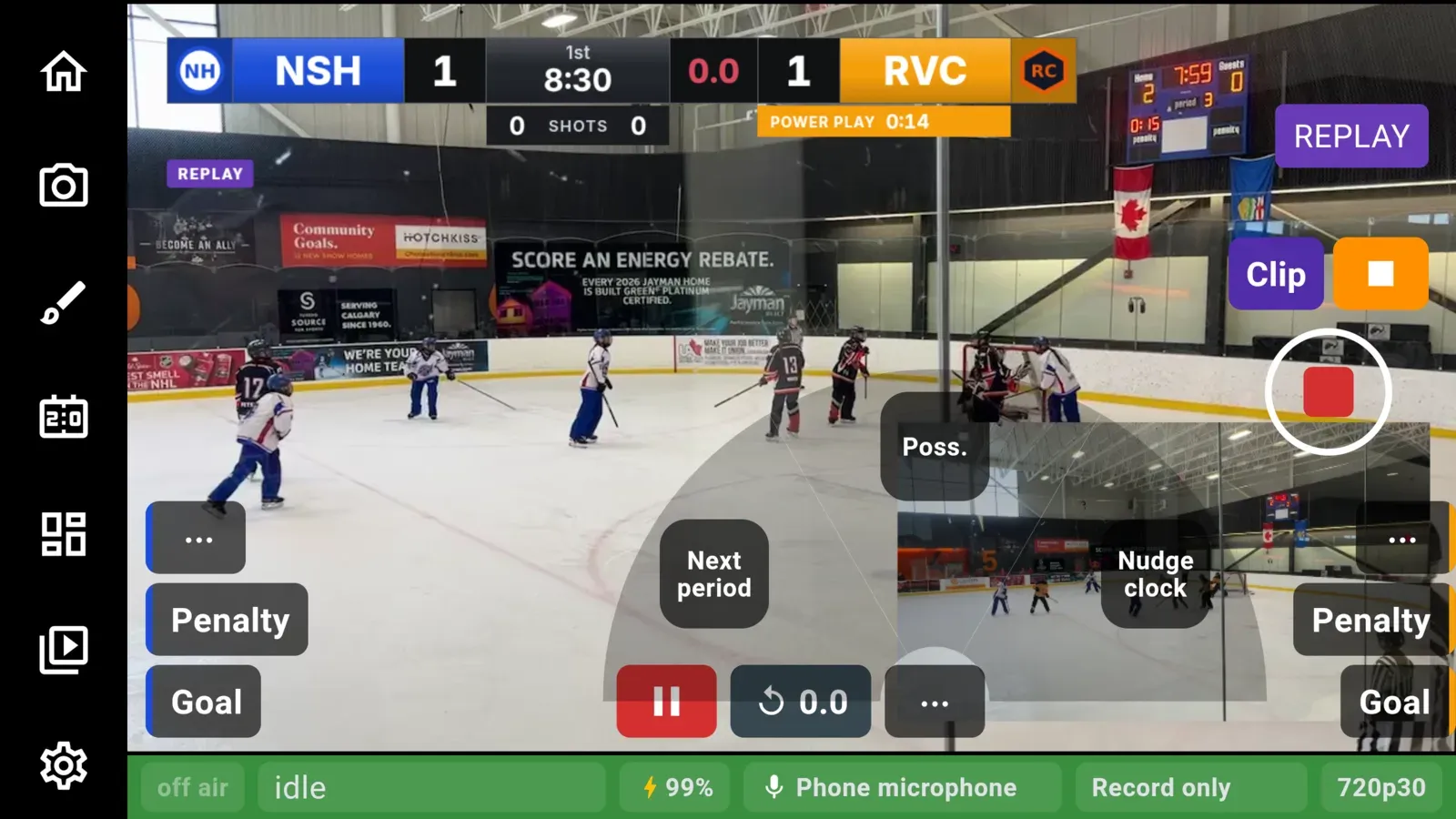
There are three groups along the bottom of the picture:
- The home stack in the bottom-left corner and the away stack in the bottom-right corner. From the bottom up, each has Goal (
+), Penalty (Foul in basketball) and More (⋯). A coloured edge on each button shows which team it belongs to. - The clock controls in the middle: start and stop (green to start, red while running), the shot clock reset with its time beside it where the sport has a shot clock, and More.
There is no score on the buttons. The scoreboard graphic shows the score.
The clock
Section titled “The clock”Tap start and stop to run the game clock. Tap the shot clock reset to put the shot clock back to full. The clock’s More opens a fan with:
- Next period moves the game to the next period.
- Possession shows which team has it. A tap switches it.
- Nudge clock opens a strip of
-1:00-0:10-0:01+0:01+0:10+1:00with the clock between them, so you can match the arena clock. Tap Done when it is right.
Scoring
Section titled “Scoring”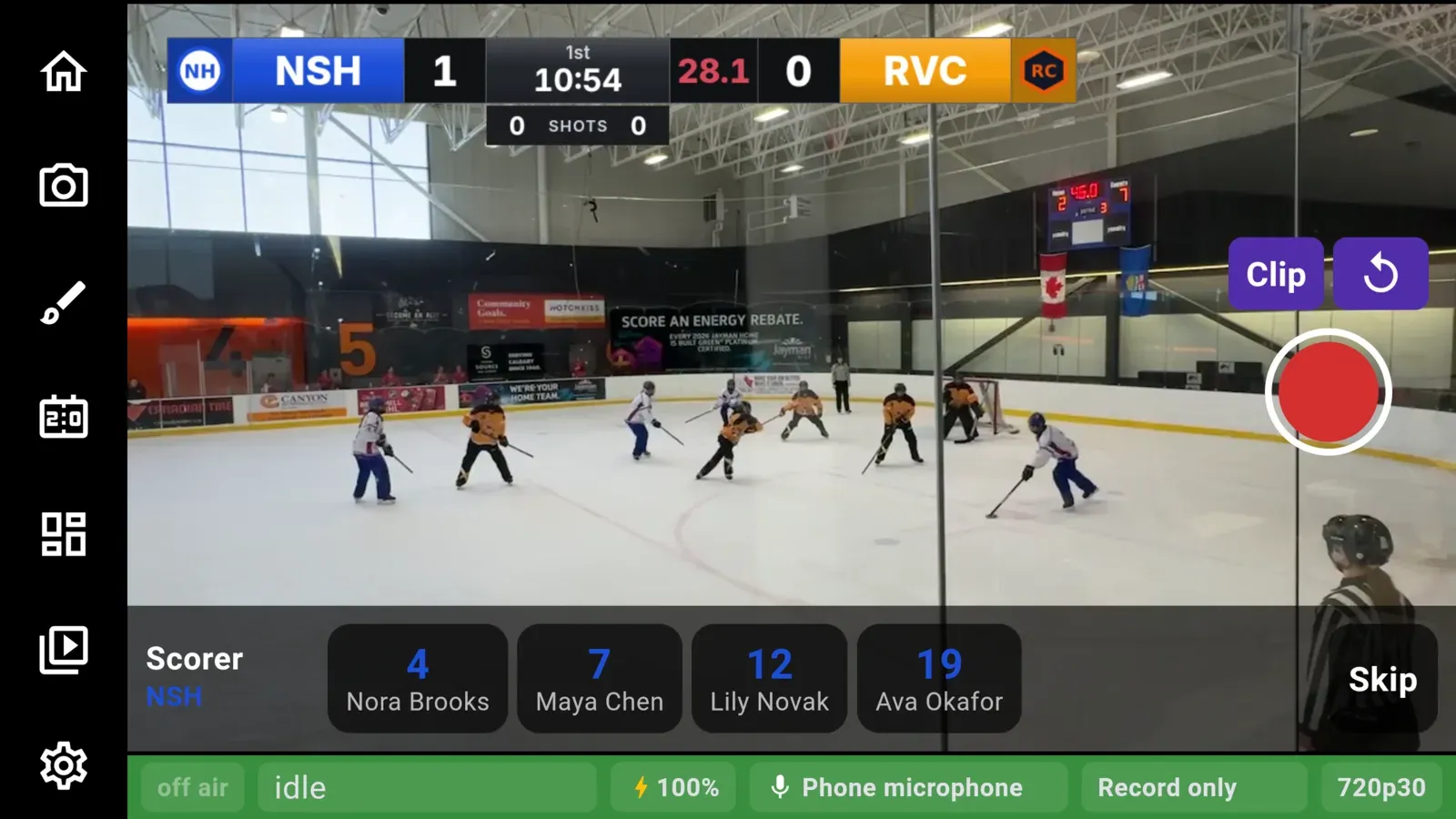
In hockey and ringette, tap Goal and the goal counts at once. The scoreboard updates before you do anything else.
If the team has a roster, a strip comes up along the bottom of the picture asking for the Scorer, then the Assist, then Assist 2. Each choice shows the player’s number in the team colour with the name under it. Tap Skip at any step to finish. The goal stands either way. If the lower third is set to show goals, it goes up once the questions are done, with the scorer and assists on it (see Scenes and overlays).
In basketball, tap Goal and a small popup offers +1, +2 and +3. Pick one to score it. Baskets do not ask for a player.
To fix a mistake, open that team’s More fan and tap Remove goal. In basketball it offers -1, -2 and -3. To name a different scorer, remove the goal and score it again.
Shots on net
Section titled “Shots on net”Hockey and ringette count shots on net for each team, and the graphics that have room show them. Shots are counted with a controller’s shoulder buttons (see Gamepad controls). In ringette a shot also resets the shot clock.
Penalties
Section titled “Penalties”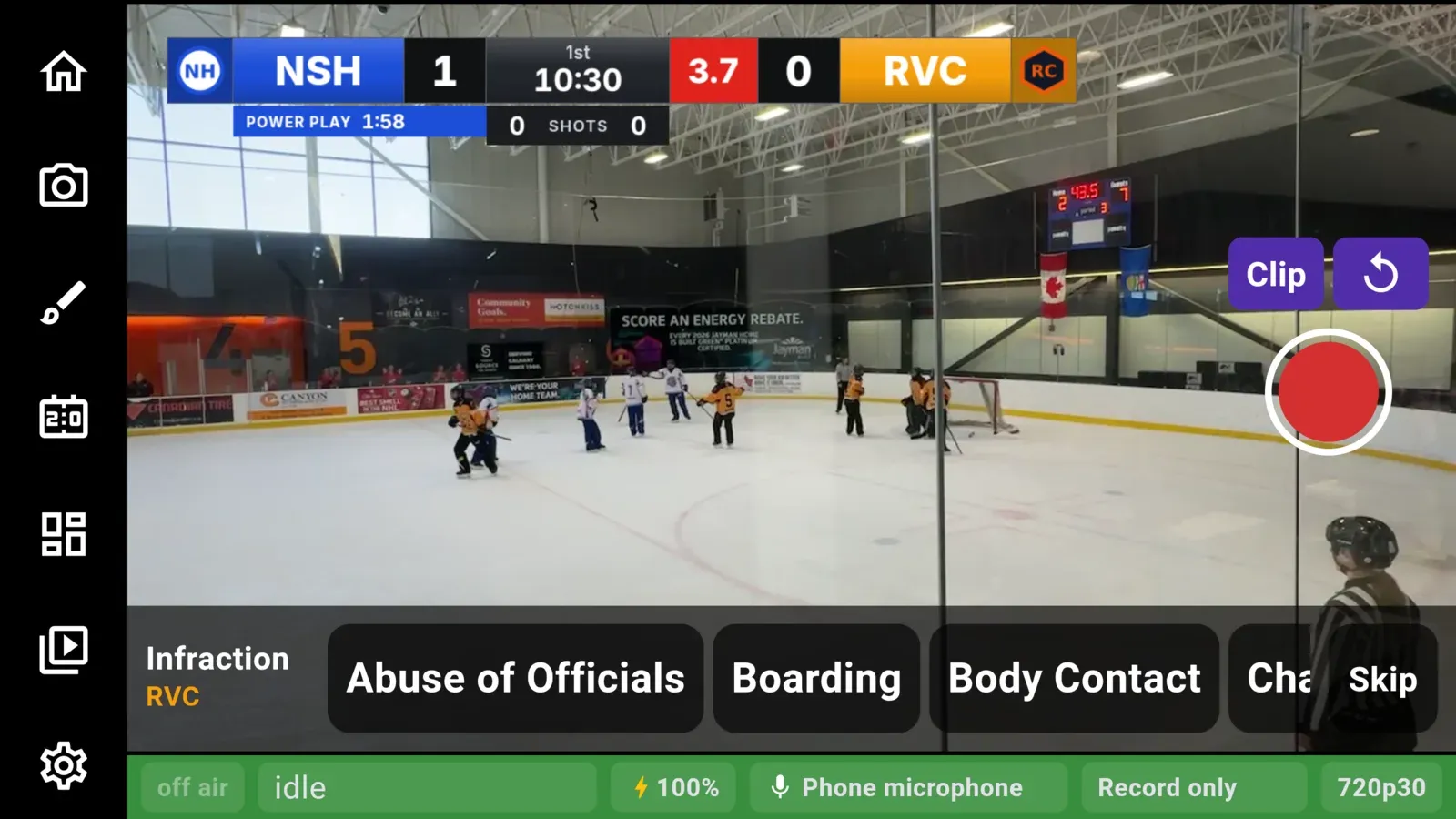
Tap Penalty for the team that took it. The strip asks up to four questions, one at a time:
- Penalty: how long. Each length the sport uses is shown once, such as
2:00 4:00 5:00 10:00in hockey. - Infraction: the call, such as Boarding, Hooking or Tripping.
- Serving: the player in the box. This is asked only when the team has a roster.
- Served: Cleared by goal if a goal against the team ends it early, or Fully served if it runs its full time.
The penalty clock starts on the first answer. Skip moves on to the next question. Tapping outside the strip ends the questions, and the penalty keeps what you have answered so far. The scoreboard shows the penalty time and the power play, and the penalty lower third goes up when the questions are done.
To take a penalty off, open that team’s More fan and tap Remove penalty. Then tap the one to remove from the list.
Fouls (basketball)
Section titled “Fouls (basketball)”Tap Foul for the team. Pick the type (personal, technical, unsportsmanlike or disqualifying), then the player if the team has a roster. Every type adds one team foul. Team fouls start again at zero each period.
Timeouts
Section titled “Timeouts”Open the team’s More fan and tap Timeout. The scoreboard shows the timeout for that team. The button is greyed out once the team has none left.
Empty net (hockey and ringette)
Section titled “Empty net (hockey and ringette)”When a team pulls its goalie, open that team’s More fan and tap Empty net. The item stays lit, and the scoreboard shows EMPTY NET under the team until you tap it again. Nothing else turns it off. Not a goal, a timeout or the end of a period.
While it is on, the extra attacker counts in the strength shown on the scoreboard, for example 6 on 4. A goal scored against a team with an empty net is marked as an empty-net goal. The lower third reads EMPTY NET GOAL, and the game log shows EN.
The team’s More fan
Section titled “The team’s More fan”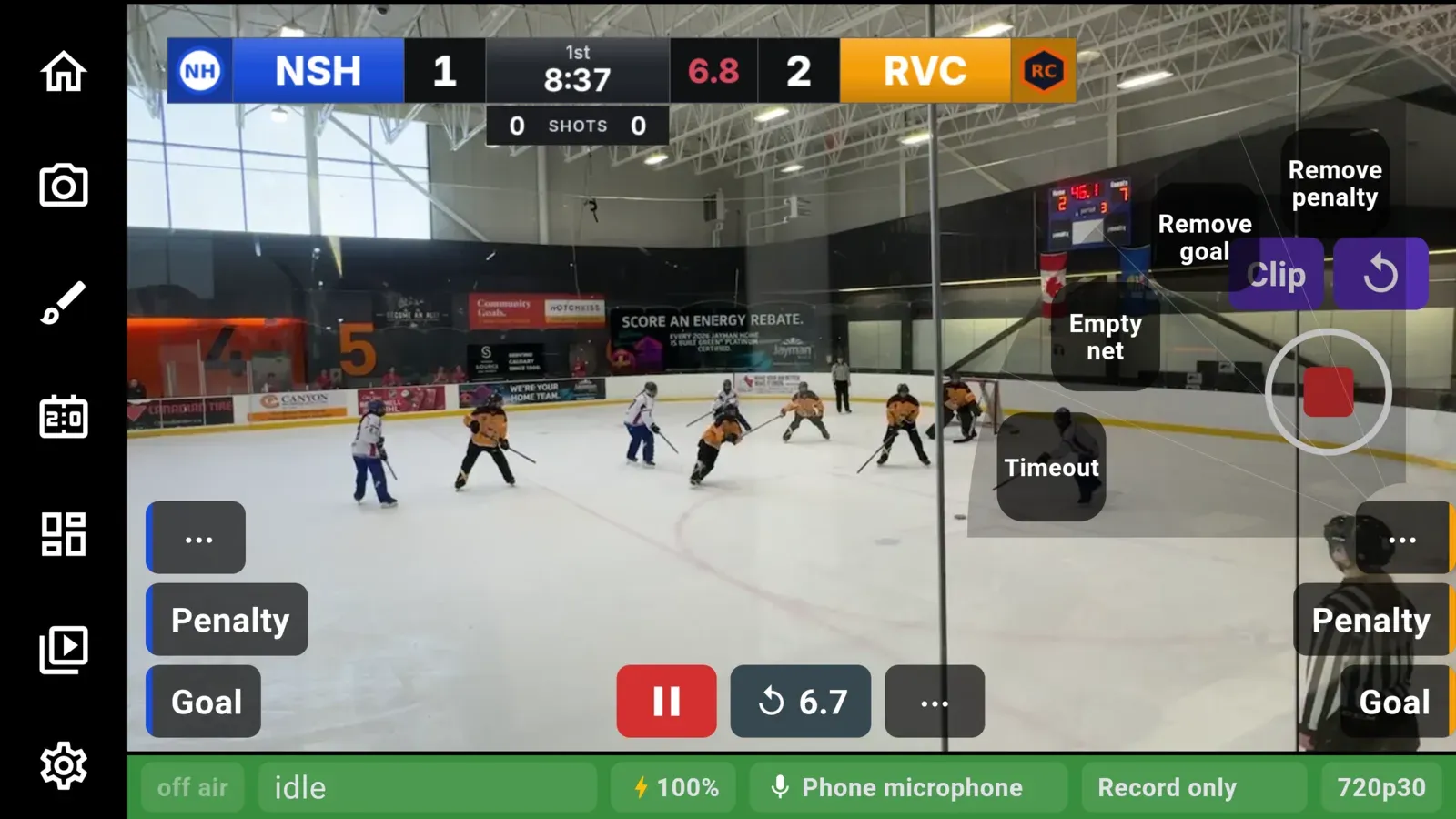
A team’s More button opens a fan of its less frequent actions: Timeout, Empty net (hockey and ringette), Remove goal and Remove penalty. Tap an item to use it, or tap anywhere else to close the fan.
The game log
Section titled “The game log”From the moment you first record or go live, CheerCam keeps every goal (basket) and penalty (foul) of the game, period by period, with the clock time it happened. It saves each entry as it happens, so a dead battery loses nothing already logged.
After the game, open it from the Home tab. The game page shows a score table by period and the log. A goal you took back stays in the log, struck through. You can fix the scorer, the assists or the player on a penalty there afterwards.
The Scoreboard pullout
Section titled “The Scoreboard pullout”The Scoreboard icon in the column holds the scoreboard’s settings, not its controls:
- Scoreboard graphic: which design goes on the stream (see Scoreboard graphics).
- Periods, Minutes each and the presets.
The sport and the teams are chosen when you set up the game, and they cannot be changed here.
Using a controller
Section titled “Using a controller”Almost every action on this page has a controller button: the triggers run the clock and reset the shot clock, and the shoulder buttons score and count shots. See Gamepad controls.