
Remote control
One phone films the game. A second phone with CheerCam is its remote control: it runs the clock, the score, shots and penalties with the same buttons the camera screen has. Whatever you do on the remote goes straight onto the camera phone’s scoreboard, in the stream and on its screen. The two cannot disagree, because the camera phone keeps the one copy of the game and the remote only sends it what you tapped.
The two talk directly over the local network. There is no account and nothing goes through the internet.
Before you start
Section titled “Before you start”- Both phones are on the same Wi-Fi, or the remote is on the camera phone’s hotspot.
- A game is running on the camera phone, with the camera screen open.
- Both phones have the same version of CheerCam.
Connect the remote
Section titled “Connect the remote”On the camera phone, tap the Remote control pill along the top of the picture. A card opens with a QR code. It is on your screen only, never in the stream.
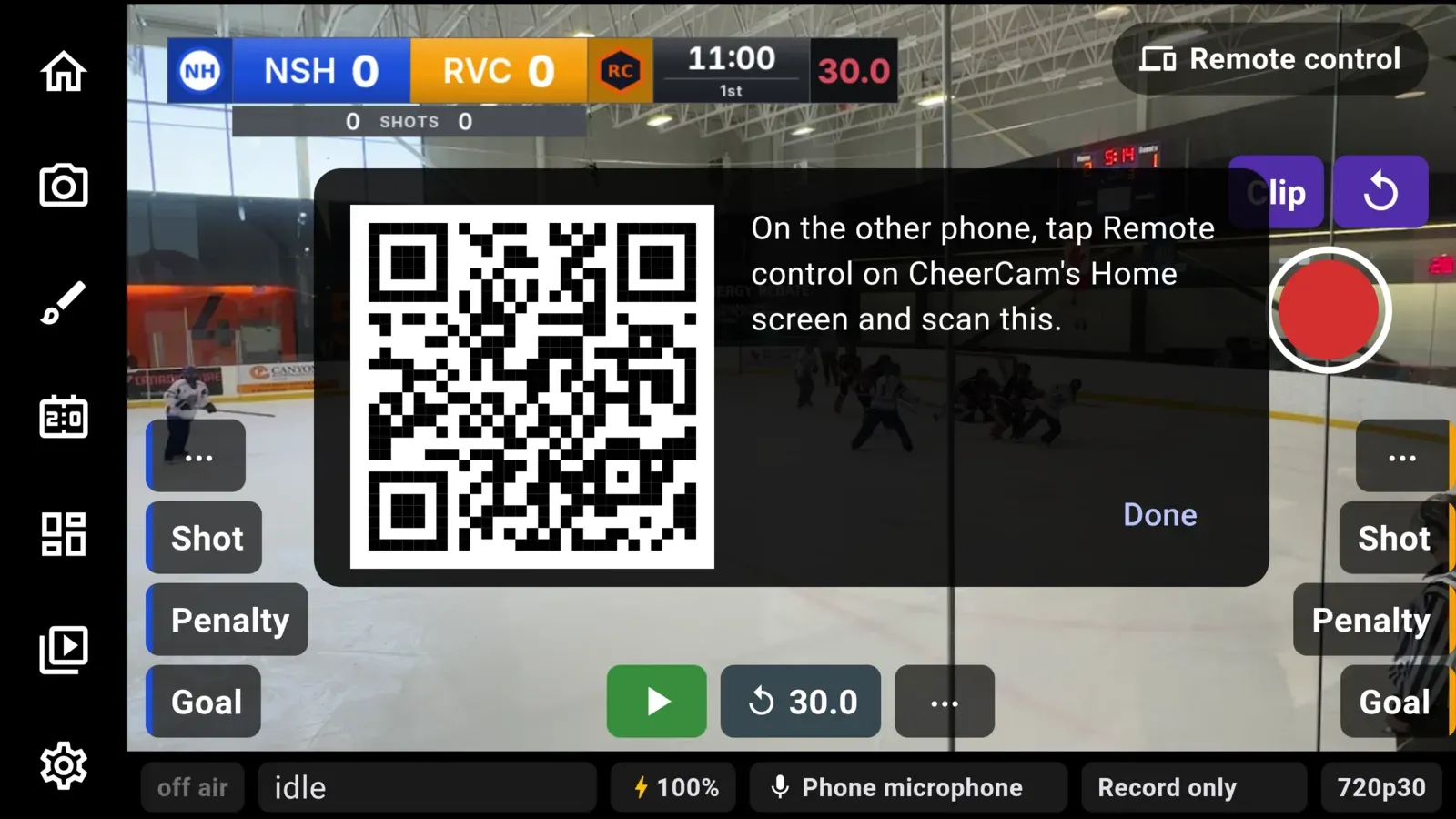
On the remote phone, tap Remote control at the top of Home and point the camera at that code. The remote opens the game as soon as it reads it. Turn it sideways.
Once it is connected, the pill on the camera phone reads Remote · 1. Tap it to see which phone is connected, or Disconnect to drop it. One remote at a time: a second phone that scans is told a remote is already connected.
During the game
Section titled “During the game”The remote shows the scoreboard as the stream has it, over a plain background with no video, and under it the camera screen’s controls:
- Goal, Shot where the sport counts shots, and Penalty or Foul for each side, with the same questions: scorer and assists, then the penalty’s call, who is serving and how it ends. The names go to the camera phone’s game log, and the goal or penalty strip goes up in the stream as it would from the camera phone.
- ⋯ for each side: timeout, empty net, and taking back a goal, shot or penalty.
- The clock, the shot clock reset, and ⋯ for the next period, possession and nudging the clock.
See Scoreboard for what each control does. The remote has the game’s controls only. Going live, recording, the camera, scenes, replays and lower thirds stay on the camera phone.
A game controller paired with the remote runs the same buttons as on the camera phone. See Gamepad controls. Buttons for things the remote does not have do nothing there.
The remote keeps its screen on while it is connected.
If the connection drops
Section titled “If the connection drops”The remote shows Reconnecting and dims its buttons, and tries again on its own. Nothing you tap is sent while it is down, so nothing lands late. The game carries on on the camera phone, and the remote picks it up as it stands when it is back.
The remote goes back to Home, with a line saying why, when the camera phone disconnects it, when the camera screen there closes, or when another remote is already connected.
When it does not connect
Section titled “When it does not connect”- No QR code on the camera phone. It is not on a network. Join the same Wi-Fi as the remote, or turn on its hotspot.
- The remote says the code is not a CheerCam remote control code. It read some other QR code. Point it at the card on the camera phone.
- It never connects. Some venue Wi-Fi keeps phones from reaching each other. Use the camera phone’s hotspot instead.
- It says the other phone runs a newer or older CheerCam. Update both.