
Remote cameras
A remote camera is a video source on another device that your phone receives and can cut to in place of its own camera. The scoreboard, scenes, lower thirds, sponsors, replay and the recording all keep working on top of it, exactly as they do on the phone’s camera.
Three kinds are supported:
| Kind | What it is | Needs internet at the venue |
|---|---|---|
| GoPro / RTMP | A GoPro, or anything that can stream to an RTMP address: an action camera, a hardware encoder, streaming software on a laptop. | No |
| VDO.Ninja | A second phone (or any device with a browser and a camera) sending video through a link. | Yes, to connect. The video stays on the local network. |
| NDI® | An NDI camera or NDI software on the network. | No |
Every remote camera must be on the same Wi-Fi as your phone, or on your phone’s hotspot. Remote cameras do not work across the internet.
Add a camera
Section titled “Add a camera”Remote cameras live in the Settings tab on the Home screen, under Remote cameras. Tap Add source and pick the kind. The new source gets a name such as “GoPro 1”, which you can change on its page.
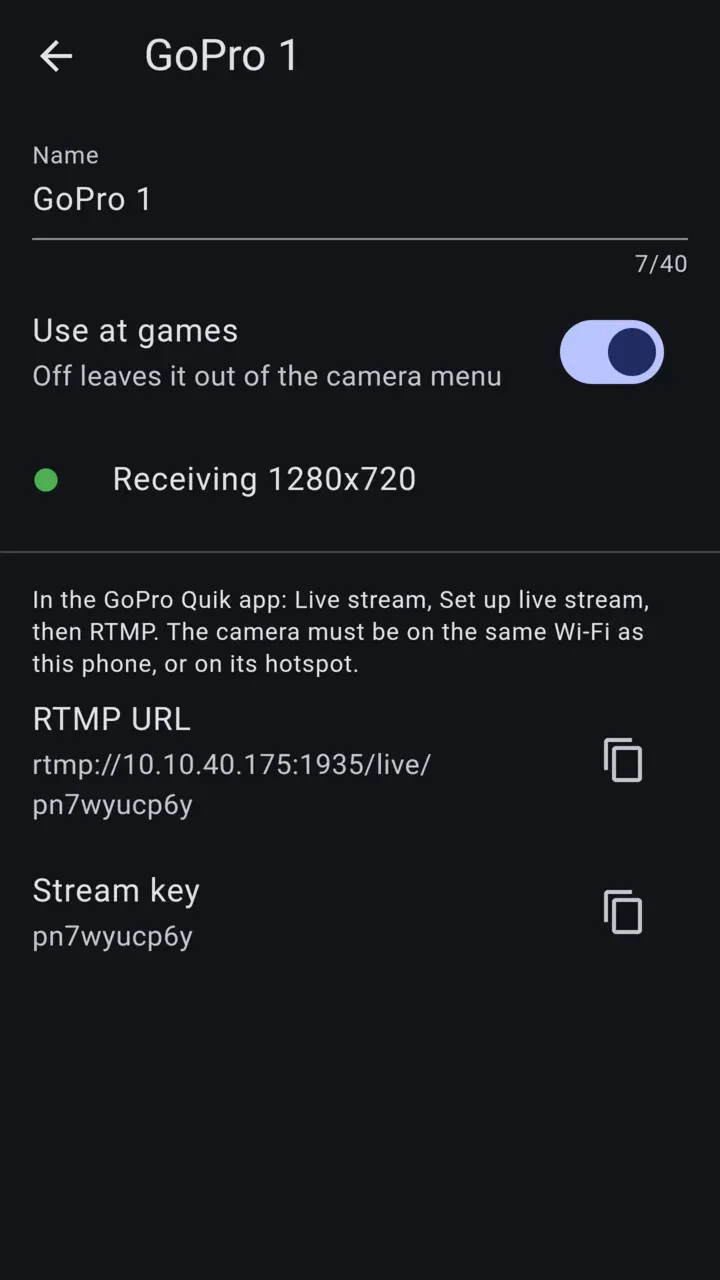
Each source’s page shows whether it is receiving (Receiving 1920x1080, Waiting for the camera or Lost the camera), so you can test a camera before the game.
GoPro or any RTMP camera
Section titled “GoPro or any RTMP camera”The source’s page shows an RTMP URL and a Stream key, each with a copy button.
For a GoPro, in the GoPro Quik app go to Live stream, Set up live stream, then RTMP, and enter the URL and key. For any other RTMP camera or encoder, enter the same two values as its stream server and key.
The URL contains your phone’s address on the current network, so it can change between venues. Open the source’s page at the venue to read the current one.
A phone through VDO.Ninja
Section titled “A phone through VDO.Ninja”The source’s page shows a QR code and a Push link.
- Scan the QR code with the other phone’s camera, or tap Send to share the link to it.
- On the other phone, open the link in a browser and allow the camera and microphone.
The other phone films with its back camera at 720p. Both phones must be on the same Wi-Fi or your hotspot, and that network needs internet for the two to find each other.
A source added in an older version of CheerCam needs its link opened again on the other phone before its audio can be used.
Add source lists the NDI sources it finds on the network. Pick one. If none show up, check the sender is on and on the same network, look again, or use Enter address and Find to look at one device’s address directly.
NDI® is a registered trademark of Vizrt NDI AB. Learn more at ndi.video.
Turn a camera off for a game
Section titled “Turn a camera off for a game”Each source has a switch in the Remote cameras list (Use at games on its page). Turn off any camera that is not at this game, so it is left out of the camera menu and does not use the phone’s battery and Wi-Fi.
To delete a source, slide its row to the left and confirm. A GoPro will need the new URL and key if you add it again.
Cut to a remote camera
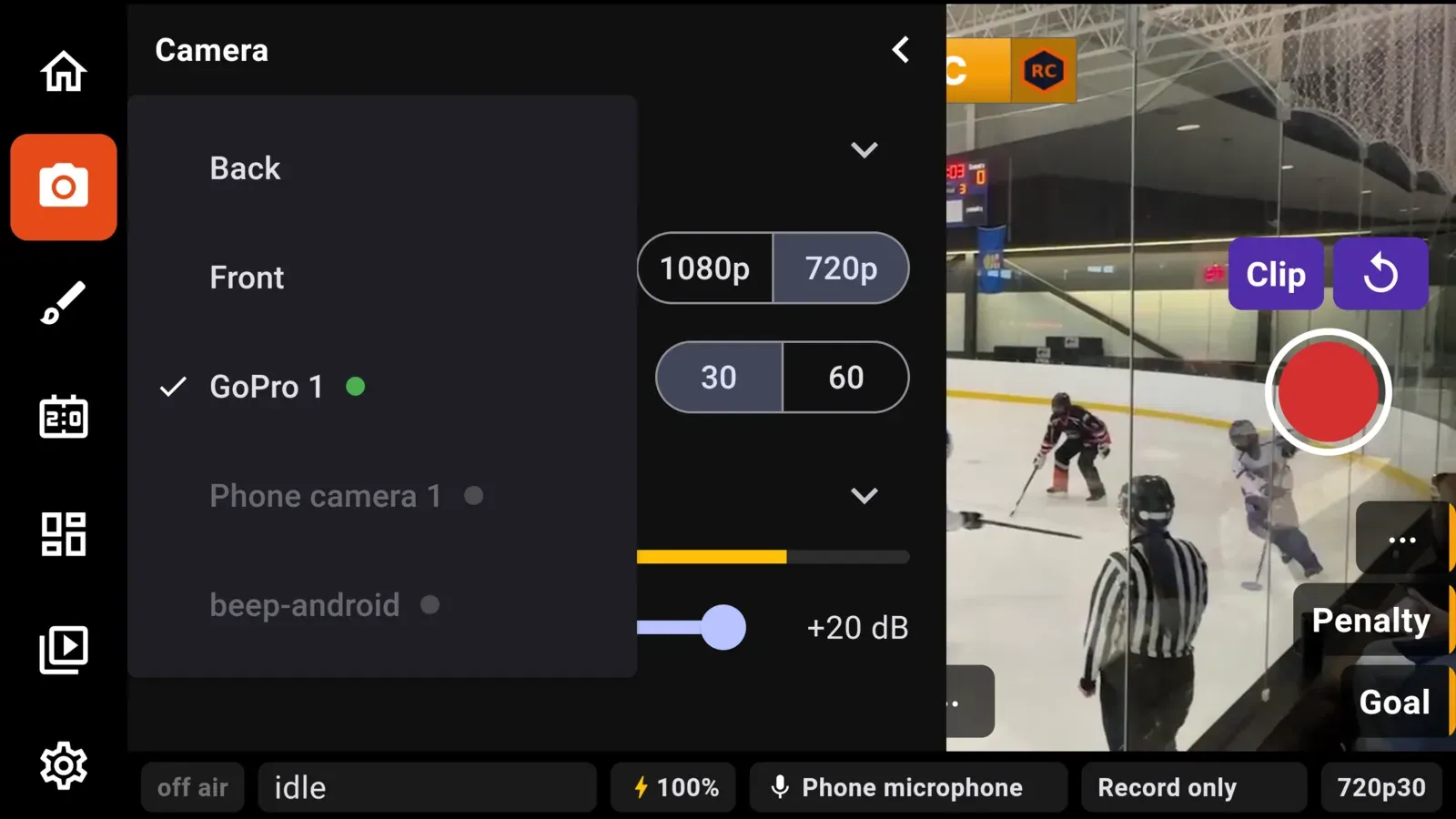
Section titled “Cut to a remote camera”On the camera screen, open Camera in the icon column and use the camera menu. Remote cameras appear after the phone’s own cameras, each with a dot that shows whether it is receiving. Pick one to cut to it. A camera that is not receiving cannot be picked.
Only one camera is on the stream at a time, full frame. A camera whose shape differs from the stream gets black bars rather than being cropped.
Zoom, focus, exposure and lens controls are for the phone’s own camera, so they are greyed out while a remote camera is on air.
If a camera drops
Section titled “If a camera drops”If the camera on air stops sending for two seconds, CheerCam cuts back to the phone camera you were last using, so the stream never shows a frozen or black picture. The status strip shows the camera’s name and lost in amber for a few seconds. It does not cut back on its own when the camera returns. Pick it again from the menu.
Picture quality after a cut
Section titled “Picture quality after a cut”- GoPro / RTMP: the full picture appears within about a second.
- NDI: a lighter stream is kept while off air, and full quality follows within a few seconds of the cut.
- VDO.Ninja: the other phone stops sending video while it is off air, to save the battery and Wi-Fi. After a cut the picture can be soft for about ten seconds while the connection builds back up. Open the Camera pullout a little before you cut and it starts sending ahead of time, so the picture is sharp on the cut.
Use a remote camera’s audio
Section titled “Use a remote camera’s audio”By default the stream hears the phone’s microphone. Any enabled remote camera can be the audio source instead.
Pick it in the audio row of the Camera pullout, which changes the source live, while streaming or recording. The same choice is under Microphone in Settings, and it is remembered between games.
- One source is heard at a time. There is no mixing.
- The audio stays with the source you picked. Cutting the picture to a different camera does not change what is heard.
- The audio row shows what is being heard and a live level meter. The gain slider is for the phone’s own microphones only. A remote camera is heard at the level it sends.
- A camera you pick before it is receiving is heard once its audio arrives. Until then the row says Waiting for its audio and the phone’s microphone is heard.
- If the camera’s audio drops for two seconds, sound goes back to the microphone picked before it, and the status strip names the drop. It stays on the microphone when the camera comes back, so pick the camera again to bring its sound back.
The status strip always shows the name of what is being heard. See Camera for the phone’s own microphones.