
Replay and clips
CheerCam keeps the last few seconds of the camera in memory the whole time the camera screen is open, whether or not you are live or recording. Saving a clip takes that window and keeps it. Playing a clip puts it into the stream at half speed, in the corner or full frame.
The clip is the camera alone. The scoreboard is not baked into it, and the live scoreboard is drawn over a corner replay the same way it is drawn over the camera.
Save and play from the camera screen
Section titled “Save and play from the camera screen”Two purple buttons sit above the record ring:
- Clip saves the last few seconds. It does not play anything.
- Replay (the circular arrow) saves a new clip and plays it in the corner straight away. While it plays the button turns amber and becomes a stop button.
A replay ends on its own and the stream goes back to the camera without a press. While it plays, the stream carries a REPLAY tag under the scoreboard.
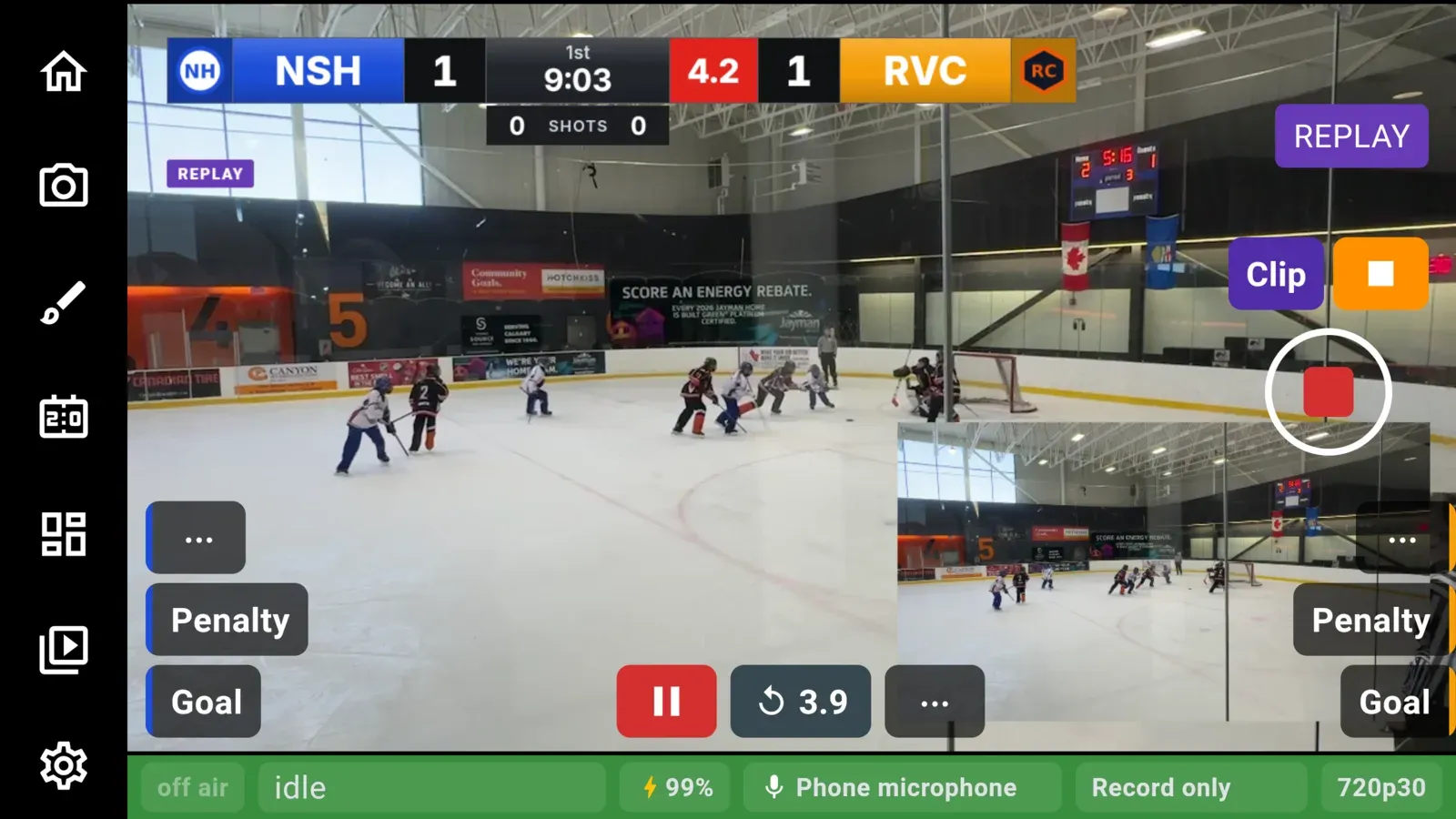
Corner or full frame
Section titled “Corner or full frame”A corner replay sits in the bottom right of the picture with the scoreboard still on. A full frame replay fills the picture, and the scoreboard, its tag and any lower third fade off until it ends. Sponsor art stays on in both.
The Replay button plays in the corner. Full frame is played from the Clips pullout or the gamepad.
How long a clip is
Section titled “How long a clip is”A clip reaches back 20 seconds by default. Change it under Replay length in Settings, from 5 to 60 seconds. The new length takes effect the next time the camera starts. A clip can come out up to two seconds shorter than the setting.
Slow motion
Section titled “Slow motion”Replays always play at half speed. When the lens in use can film at 60 frames a second, CheerCam keeps 60 frames a second for replays even while the stream runs at 30, so a slow-motion replay still shows a smooth thirty pictures a second. This is automatic. There is no switch, and the stream and recording keep the frame rate you picked.
The Clips pullout
Section titled “The Clips pullout”Tap Clips in the icon column to see every clip from the current game, newest first.
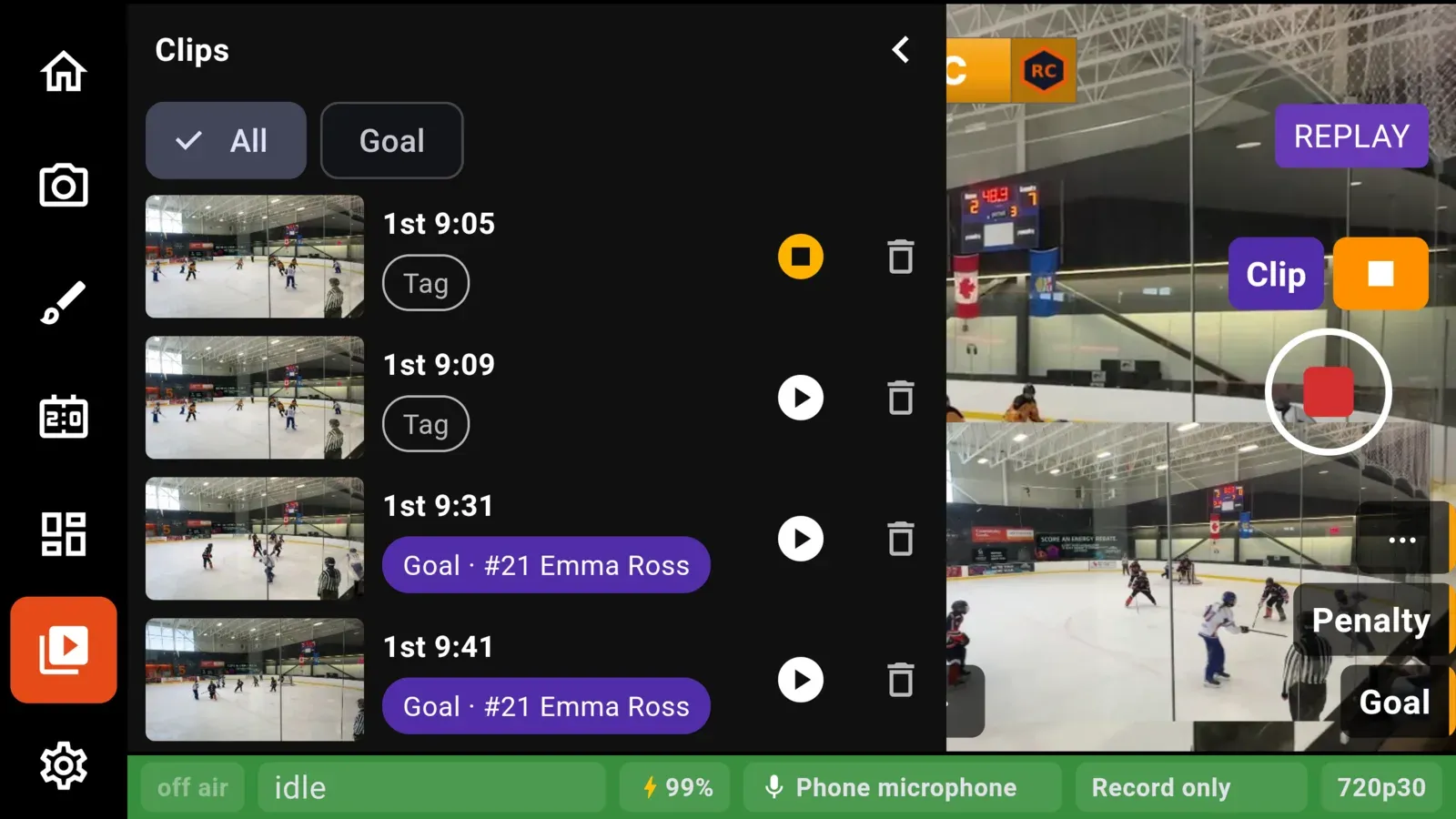
Each row shows a still from the clip, the period and clock when it was taken (for example 2nd 12:41), and its category.
- Play puts the clip on the stream full frame, at half speed. The pullout stays open so you can pick the next one.
- Play on another row while one is playing queues it. Queued clips play back to back with no camera between them. Each queued clip shows its place in line as a large number on its still.
- Stop ends the clip that is playing and clears the queue.
- Delete removes the clip after asking.
The list is empty until the game has started recording or gone live once.
Categories
Section titled “Categories”Each clip can carry one category. Tap the chip on a row (it reads Tag when there is none) and pick from the sport’s list:
| Sport | Categories |
|---|---|
| Hockey, ringette | Goal, Save, Penalty, Hit |
| Basketball | Basket, Block, Foul, Steal |
The chips across the top filter the list: All, then each category that has at least one clip.
Goals and penalties tag clips by themselves. A goal or penalty entered during a clip, or up to 15 seconds after it was taken, tags that clip and adds the player, for example Goal · #17 J. Bell. Naming the scorer later updates the tag. Automatic tags only fill a clip that has none, so a category you picked yourself is never replaced.
Things to know
Section titled “Things to know”- Replay is off while a scene is up. Clip still saves the moment. See Scenes and overlays.
- The Replay button and the gamepad do not queue. They stop whatever is playing, the queue included.
After the game
Section titled “After the game”Every clip is kept with its game. Open the game from the Home screen to watch its clips, filter them by category and change their tags. See Home and schedule.
On the gamepad
Section titled “On the gamepad”Y saves a clip. Hold the D-pad right and press Y to play the latest clip in the corner, D-pad up and Y for full frame, or D-pad left and Y to pick an older clip. The full map is on the gamepad page.